Set up online table bookings
Choose when guests can book, which tables they can book, and put the booking widget on your website.
HospOSGuests book a table from your website, from your online ordering page, or from a link you share. Four things decide what they can book: your opening hours, your booking rules, which tables are bookable, and the widget itself.
1. Check your opening hours
Bookings follow Settings ▸ Shop ▸ Opening Hours. Closed days and one-off changes go in Special Hours. The last time a guest can book is one booking length before you close (for a big group with its own booking length, that group's length) — open until midnight with 90-minute bookings, the last booking starts at 10:30 pm.
2. Set your booking rules
Go to Bookings ▸ Booking rules (under Setup). Two links at the top lead to the other places bookings depend on: Which tables take bookings → Booking order and Hours bookings follow → Opening hours.
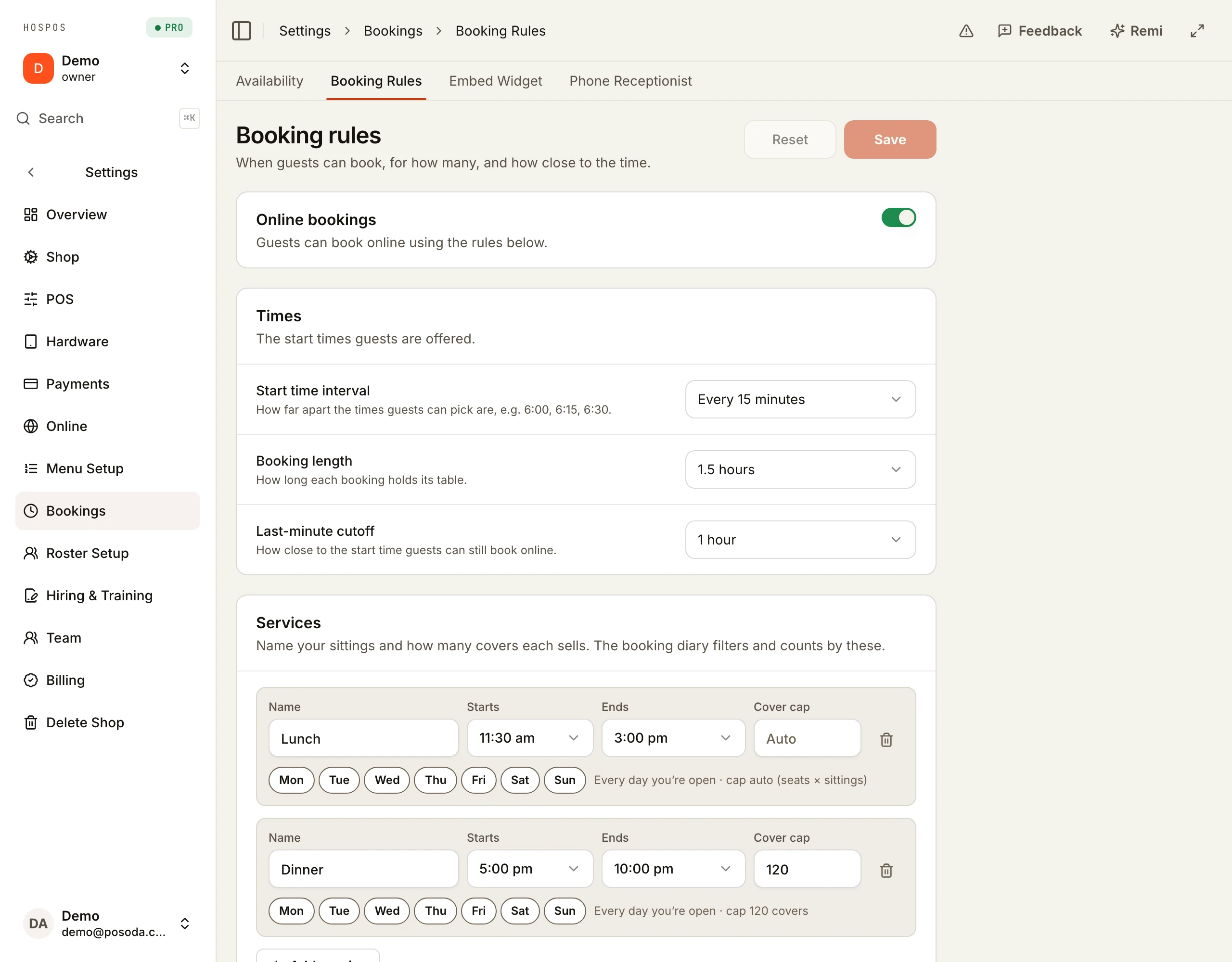
- Accept online bookings is the master switch. While it is off, the widget tells guests online bookings are paused and shows your phone number.
- Times — Start time interval (how often a booking can start, e.g. every 15 minutes), Booking length (how long a table is held, from 30 minutes to 5 hours), a Set a different length for some party sizes link, and Stop online bookings before start (how close to the start time guests can still book online; your team can still book closer in).
- Services — name your sittings (for example Lunch and Dinner), their times and days, and how many covers each can sell. The bookings diary filters and counts by them.
- Party size — Minimum guests and Maximum guests. Bigger groups have to call you.
- Cancellations — how long before the booking guests can still cancel online.
- Pacing — cap how many guests can start in the same window, so the kitchen isn't hit by every table at once.
- Deposits and reminders — Take a deposit for some online bookings charges guests a deposit per guest when they book online. Each rule sets the amount, the party size it starts at, and optionally the days and times it applies to; the first rule that matches is used. The deposit is refunded in full if the guest cancels online inside your cancel window. After that you decide, and a no-show keeps it. Bookings you enter yourself are never charged. Card payments must be set up for your venue before you can add a rule: until then the editor says so and links to Set up payments. When a guest's deposit is paid, the till takes it off the bill automatically. Confirmation and reminder emails are automatic.
Choose Save when you're done.
Longer bookings for bigger groups
Under Booking length, choose Set a different length for some party sizes. Each rule says "From x to y guests" and how long those parties hold a table, for example 6 or more guests for 2 hours. A party that no rule covers gets the normal Booking length. The same lengths apply when your team books by phone and when they seat a walk-in from the diary. Use Add a party size for more rules, or the bin to remove one.
3. Choose which tables can be booked
Go to Settings ▸ Shop ▸ Floor Plan and switch from Layout to Booking order. (You only see the switch if you can change settings and bookings are on for your venue.) Every table from your floor plan is listed, grouped by area.
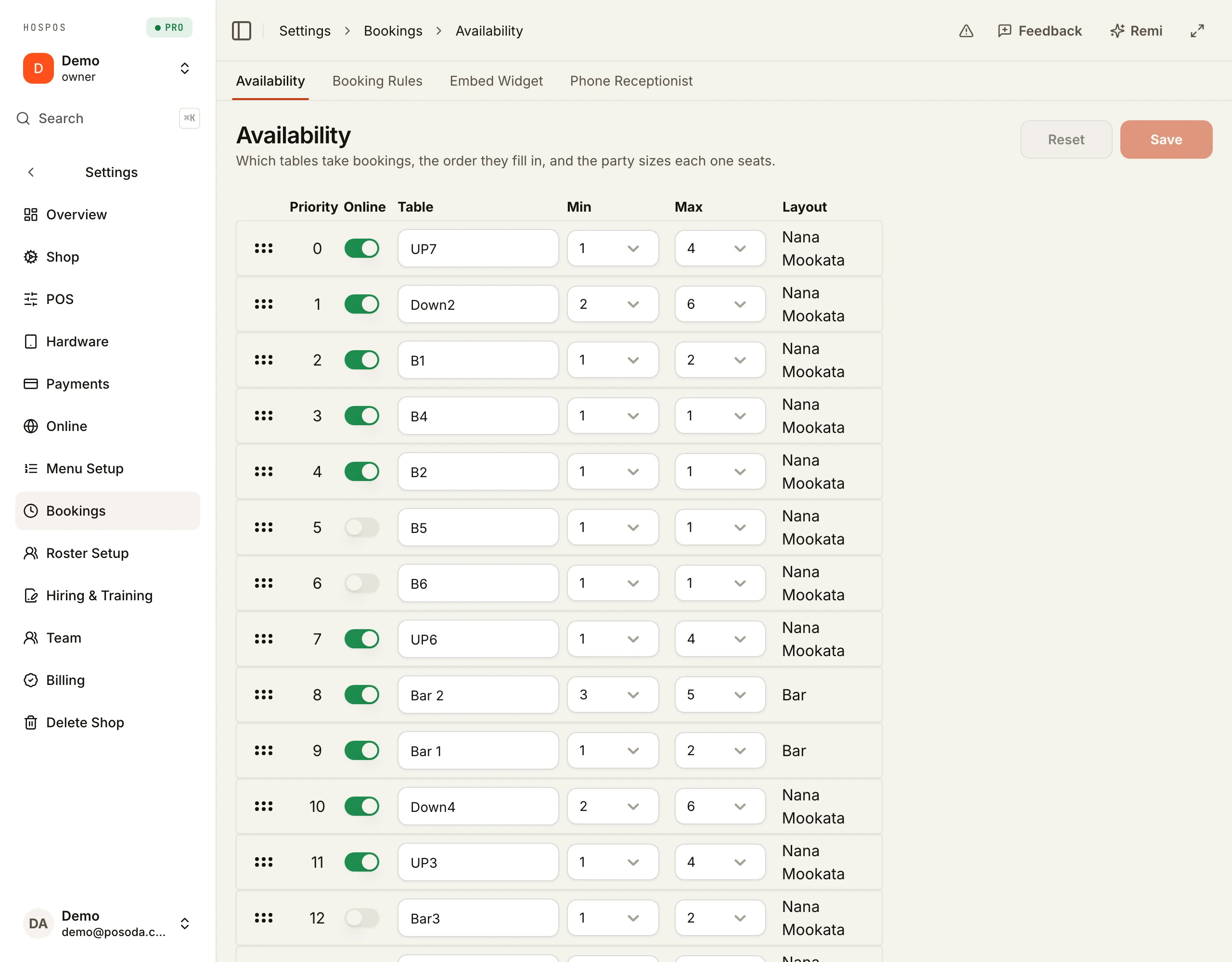
- Active — switch a table off to take it out of bookings. This also hides it from the till and QR codes.
- Online — switch a table off to make it "staff only" (it shows a staff only tag). Online bookings (the widget, the embed and the phone receptionist) never offer it, but you can still book it yourself and guests can still order from its QR code. Combined tables are offered online only when each table in them is.
- Min / Max — the party sizes the table seats.
- Fill order — drag a table to reorder it inside its area. Each area's heading says when it fills ("fills first", "fills 2nd"); use the up and down arrows beside the heading to fill an area earlier or later. A booking gets the first free table that fits.
- + Add Combined Table — join tables for a bigger group (for example two four-tops for eight). Give it a minimum and maximum party size.
Then Save. Tables themselves are added on the Layout view of the same page, and Min and Max are the same seats you set there — changing them in one view changes the other. If you have unsaved changes in one view, save or reset them before switching.
The old Bookings ▸ Availability page is gone; its address now opens this view.
4. Put the widget on your website
Go to Bookings ▸ Booking link & widget (under Setup). If online bookings are switched off, the page says so at the top and links to Turn on in Booking rules: the link and widget won't take bookings until you do. Under Add booking to your website, choose Copy booking link to share the booking page on its own — on social media, or in an email signature — or Email to my web developer to send the instructions to whoever looks after your website. If your Posoda website already carries the widget, the page says Already on your website and has nothing to install. Open standalone opens the booking page in a new tab.
To paste the code yourself, open For your developer: embed code at the bottom of the page and copy the Snippet (use Recommended unless your website builder only accepts a plain iframe).
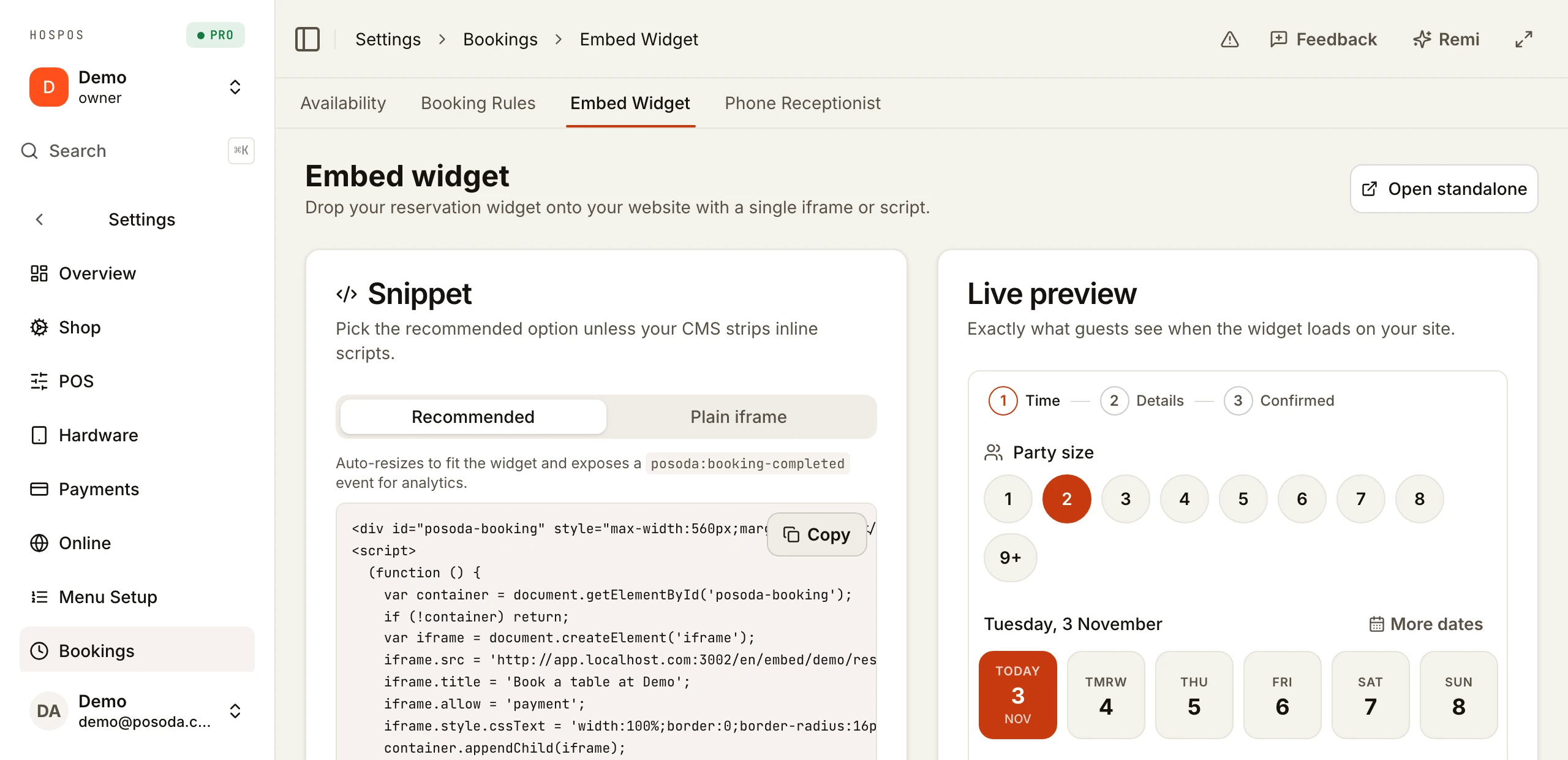
The Live preview is the real widget. Looking up times is fine, but completing a booking there books a real table and emails a confirmation.
What guests and you receive
Before they book, the widget tells guests until when they can cancel online for free, and that after that they contact you and a deposit may not be refunded. Once they book, the confirmation screen shows a short reference, the time the table is held until, any deposit paid, the email address the confirmation went to, and a Manage or cancel booking button. They also get a confirmation email with the same link, and the venue's email address gets a New reservation notice. Reminders go to the guest 24 hours and 2 hours before.
If something doesn't look right
- "Online bookings paused" on the widget — turn on Accept online bookings in Booking rules.
- A time you expected isn't offered — check the opening hours for that day, Stop online bookings before start, and that a table big enough for the party is switched Active and Online in Booking order.
- The party-size hint is red — the minimum is above the maximum, so no party size can book.
Last checked against the app on 2026-11-23.