Take and manage bookings
Use the bookings diary to take phone bookings, seat walk-ins, move tables and block time off.
HospOSThe bookings diary is the same screen your team uses on the tablet at the host stand. From the dashboard, open Bookings ▸ Diary — it opens in its own tab. On the tablet it's Book in the staff portal.
Read the night
Each table is a row and the day runs left to right. Every booking is a bar on its table, coloured by status. Across the top: covers booked, reservations, how many are on the floor now, and how full each service is. The list on the right shows who is on the floor and who is still to come.
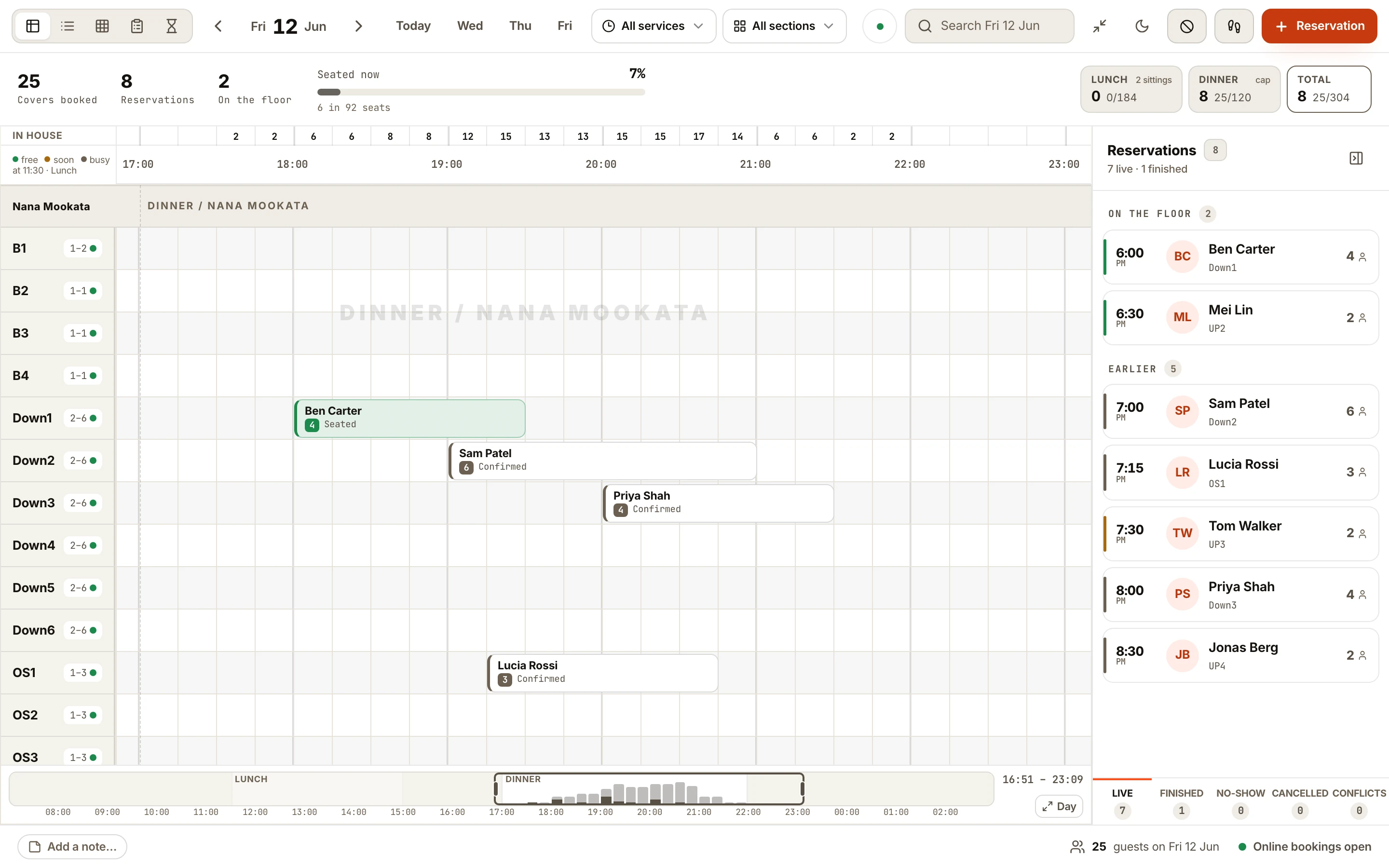
Use ◀ and ▶ or Today to change day.
Take a booking by phone
- Choose Reservation.
- Fill in the guest's First name, Telephone and Email address.
- Choose the day, the number of People and the Time. Each start time shows how many seats are still free, and Service and Section narrow it down. If you've set booking lengths by party size, the booking's end time follows the number of People until you pick an End yourself.
- A Table is suggested for the party; tap another one underneath to change it.
- Add any notes — allergies, high chairs, a birthday — and Save.
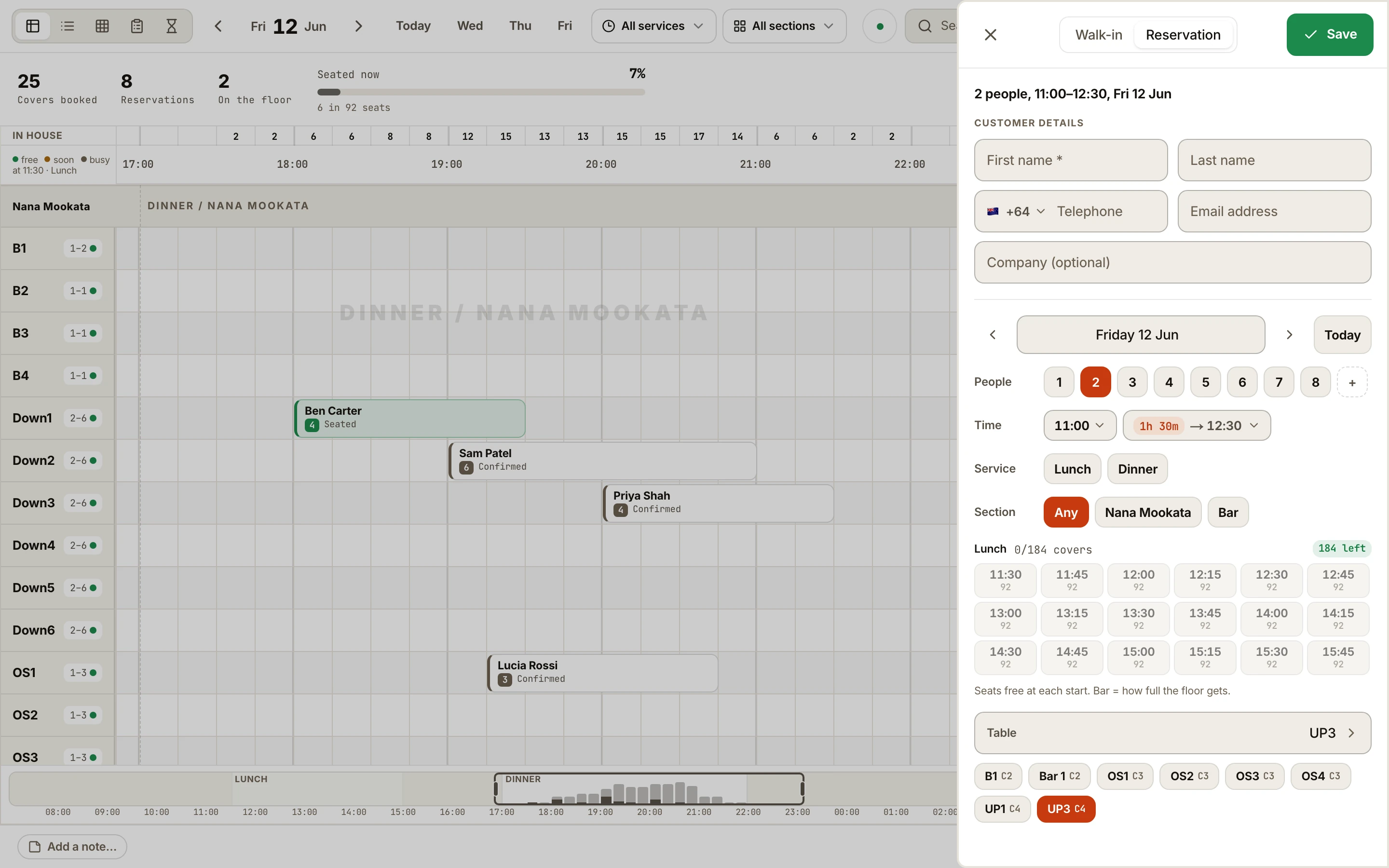
If the guest has an email address, they get a confirmation with a link to change or cancel.
Seat a walk-in
Choose Walk-in, or tap an empty slot on a table in the diary, pick the party size and choose Seat. If you've set booking lengths by party size, the end time follows the party size you pick.
Change a booking
Choose a booking to open it. The summary shows the guest, party, table and notes; Edit booking changes them.
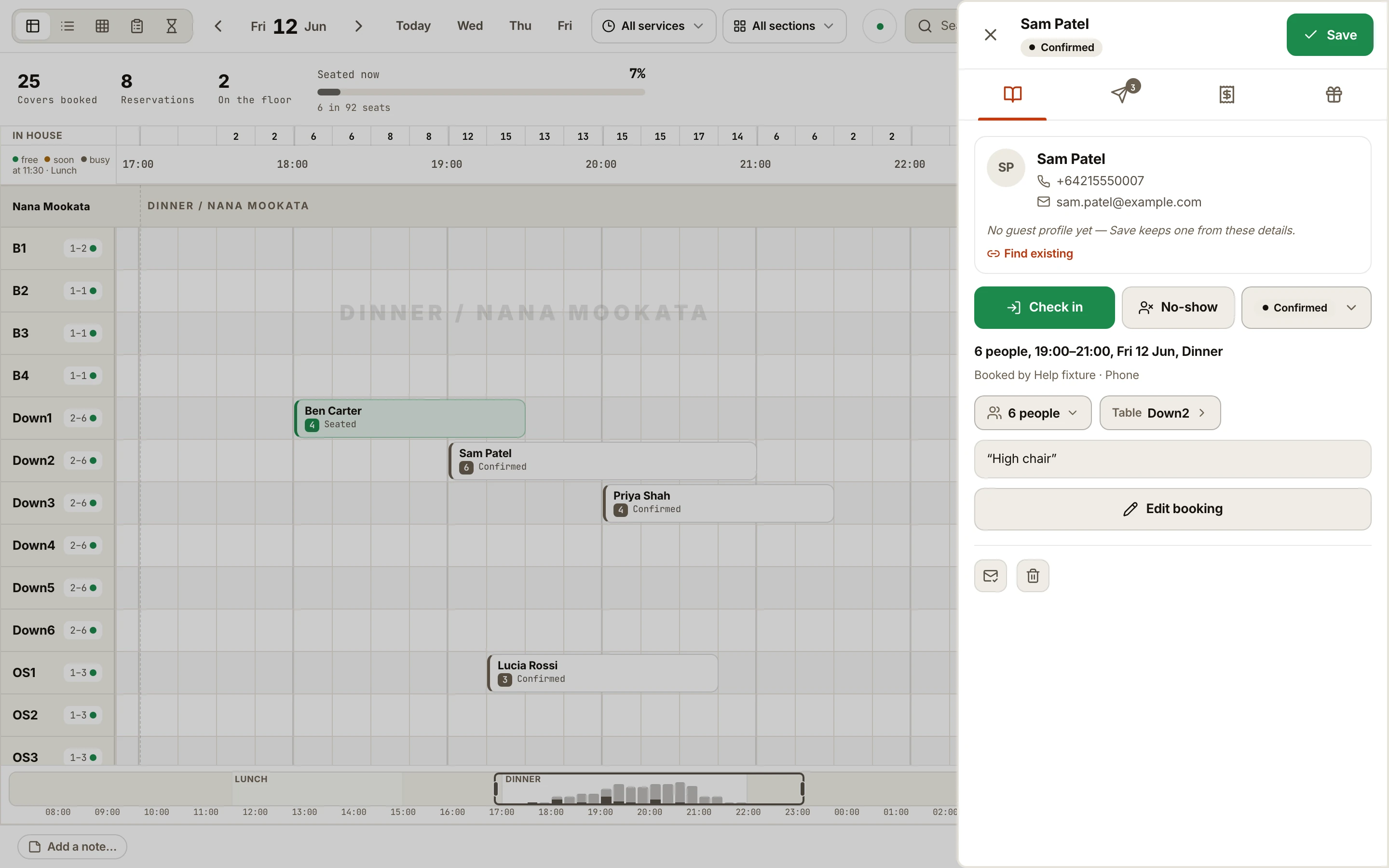
- Status — Confirm an unconfirmed booking, Check in when the guest arrives (from four hours before), and Check out when they leave. No-show is beside them once the booking's time has passed, and the status menu has every state — one that isn't open yet shows when it opens ("Seated from Sat 13:00"). Status changes save straight away.
- Move — drag the bar to another table or time. You'll be asked to confirm, and you can choose whether to email the guest the new time.
- Length — drag the grip at the bar's right end to change when it finishes.
- Cancel — right-click the bar (or long-press on a tablet) and choose Cancel booking.
Emails go to the guest when you change the time or party size with the email option on, and when a paid booking is cancelled. Turn the option off if you've already told them by phone.
Block tables or close the venue
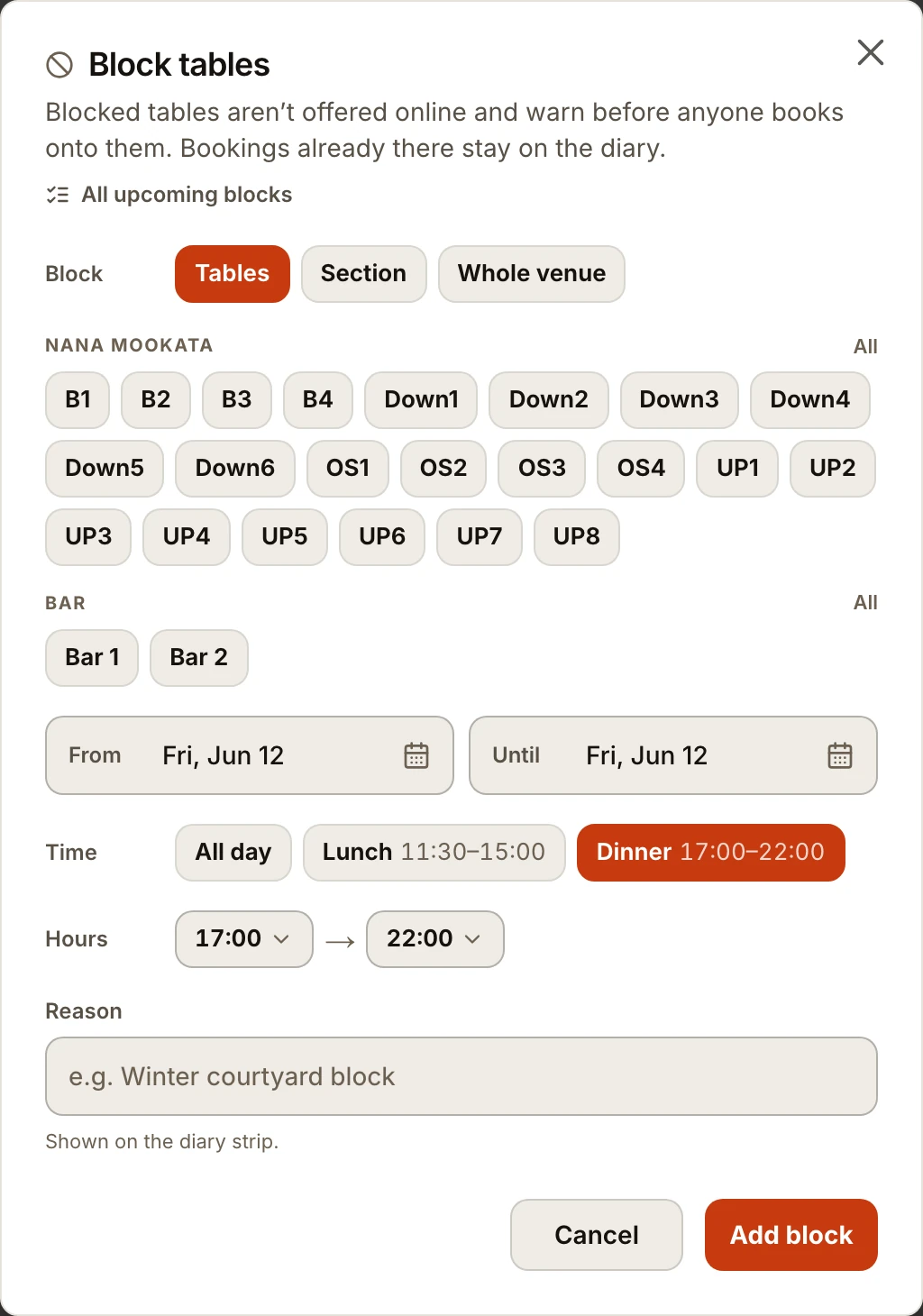
Choose Block (on a narrower screen such as a tablet it can show as just a crossed-circle icon at the top). Pick Tables, a Section or the Whole venue, set when it starts and ends and a reason, then Add block (or Close venue). Online bookings won't be offered for blocked tables. A table switched off for Online in Booking order is also never offered to guests online, though you can still book it here. All upcoming blocks lists the ones already set.
If something doesn't look right
- "Check in opens …" — a booking can only be checked in from four hours before it starts.
- "This table is already booked" — another booking (or a block) holds that table at that time. Change table goes back to pick another; Save anyway keeps both, and the diary lists them under Conflicts until one moves.
- A booking shows "Unconfirmed" — it came in online and is waiting for you to confirm it.
- Accept is greyed out on a group request — a request is accepted once the group has a seat. Choose a table for it first, then Accept. Until you accept or decline it, a request has no status menu or Check in in the booking, and the bar's right-click menu offers only Accept and Decline request: the guest is only asked to pay once you accept, and any other status change is refused ("Accept or decline this booking request before changing its status.").
- The diary opened in a new tab. That's on purpose — it's the host-stand screen, so the dashboard stays where you left it.
Last checked against the app on 2026-11-24.