Set up a daily checklist
Turn a paper routine — opening, cleaning, temperatures — into a checklist your team completes on the tablet.
HospOSBeautyOSRetailOSA template is one routine — "Cleaning & close-down", "Cold holding". You set it up once; Posoda then puts a fresh copy on the staff tablet every time it is due, and keeps every completed one as a record.
Open your templates
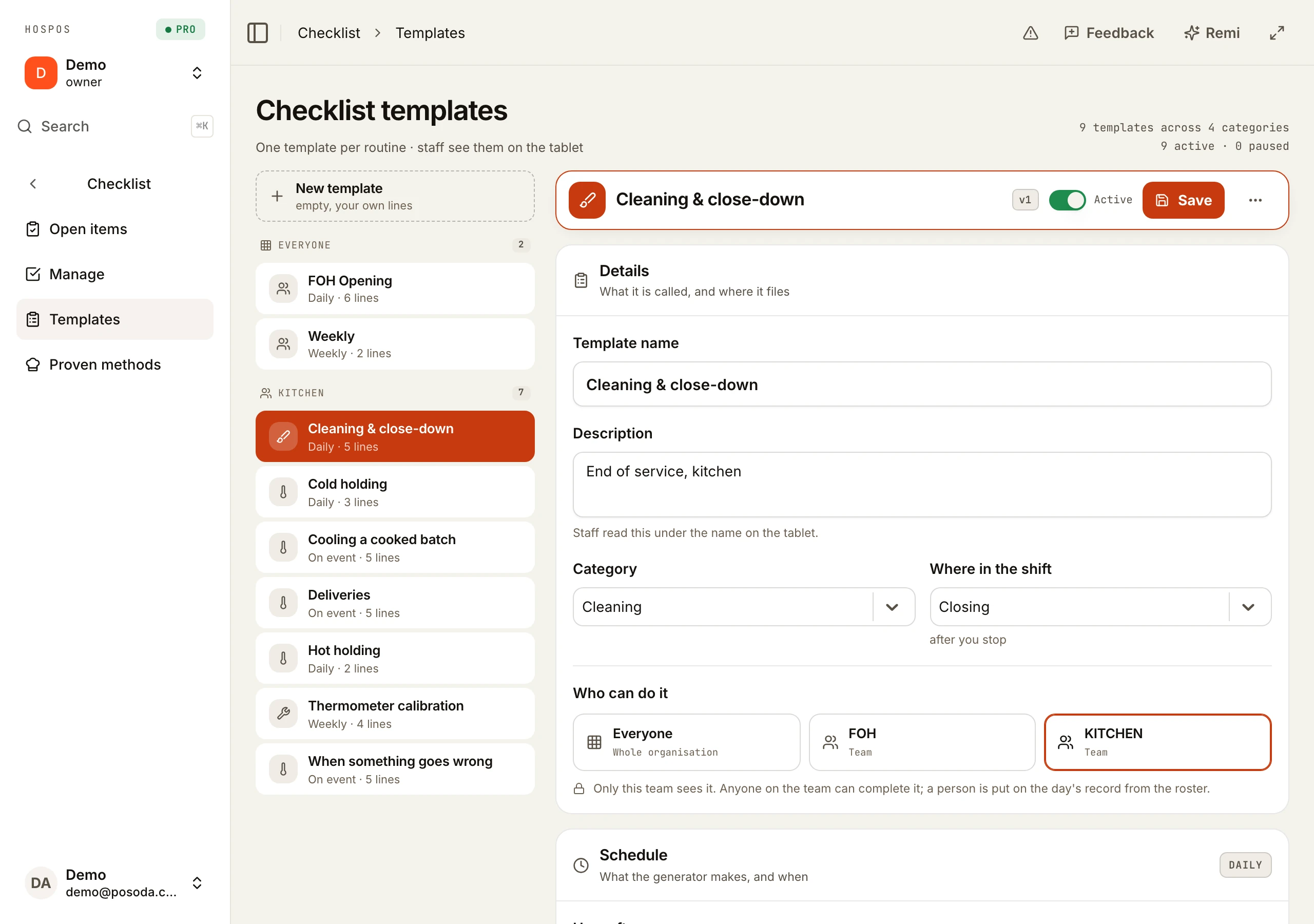
Go to Checklist ▸ Templates. Your templates are listed on the left, grouped by who does them; the one you choose opens on the right.
Create a template
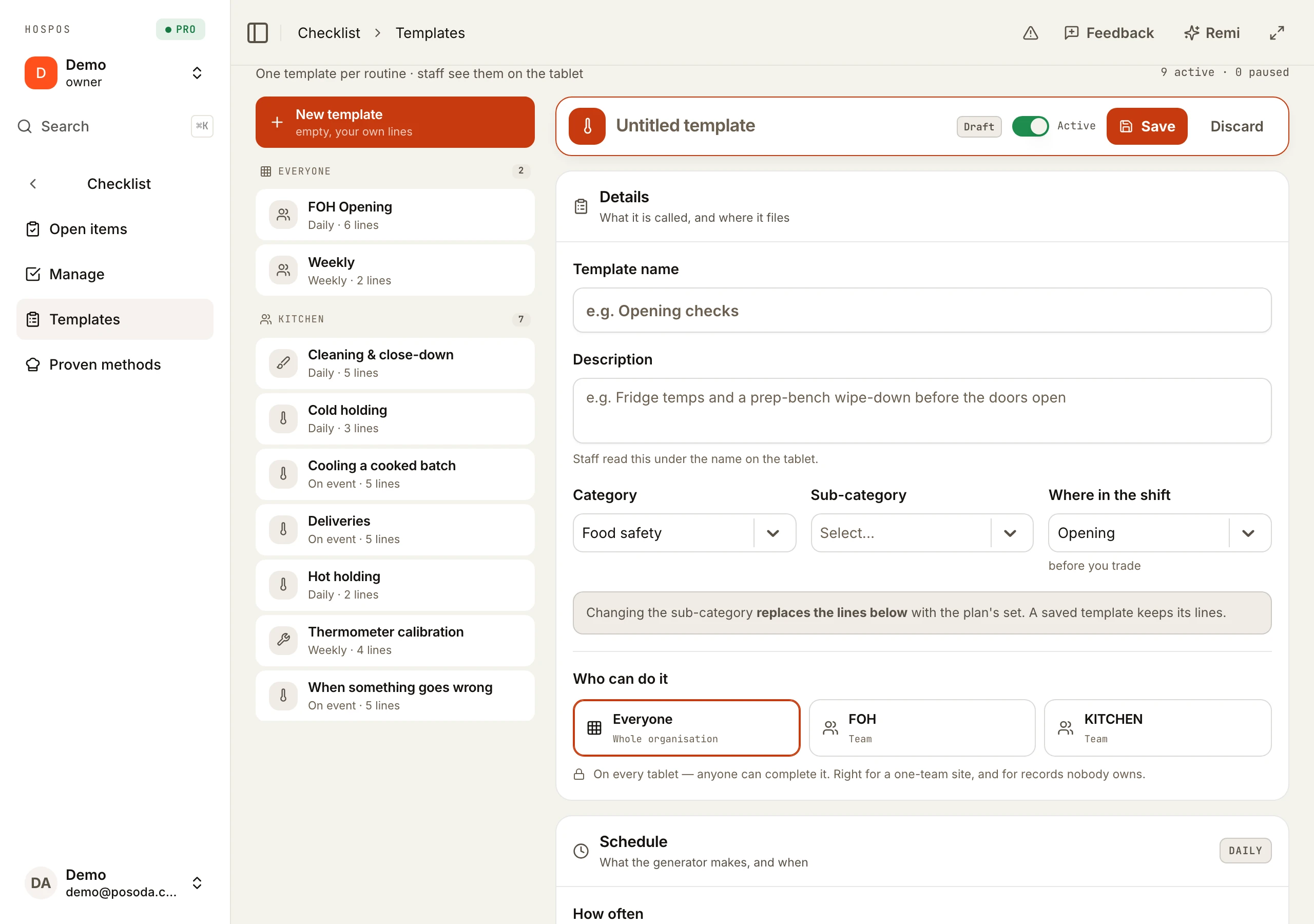
- Choose New template.
- Under Details, give it a Template name and an optional Description — staff read it under the name on the tablet.
- Pick a Category and Where in the shift it happens: Opening, During service, Closing, Periodic, or When something happens.
- Under Who can do it, choose Everyone or one team.
To start from one you already have, open it and choose Duplicate template from its ⋯ menu. The copy is called "(copy)" after the original's name and starts paused, so nothing reaches the tablet until you've edited it and switched it on. Save or discard any changes first.
Category is Food safety to start with. Food safety templates also have a Sub-category, and changing it replaces the lines with that plan's set (the warning counts how many lines you would lose). For a plain cleaning or opening list, pick a different category first.
Set how often it repeats
Under Schedule, choose How often: Daily, Per shift, Weekly, Bi-weekly, Monthly, Yearly, a Custom interval (every so many days or weeks), Once, or On event. Starts sets the first day, and Check times repeats lines at set times in the day — for example a temperature check every two hours.
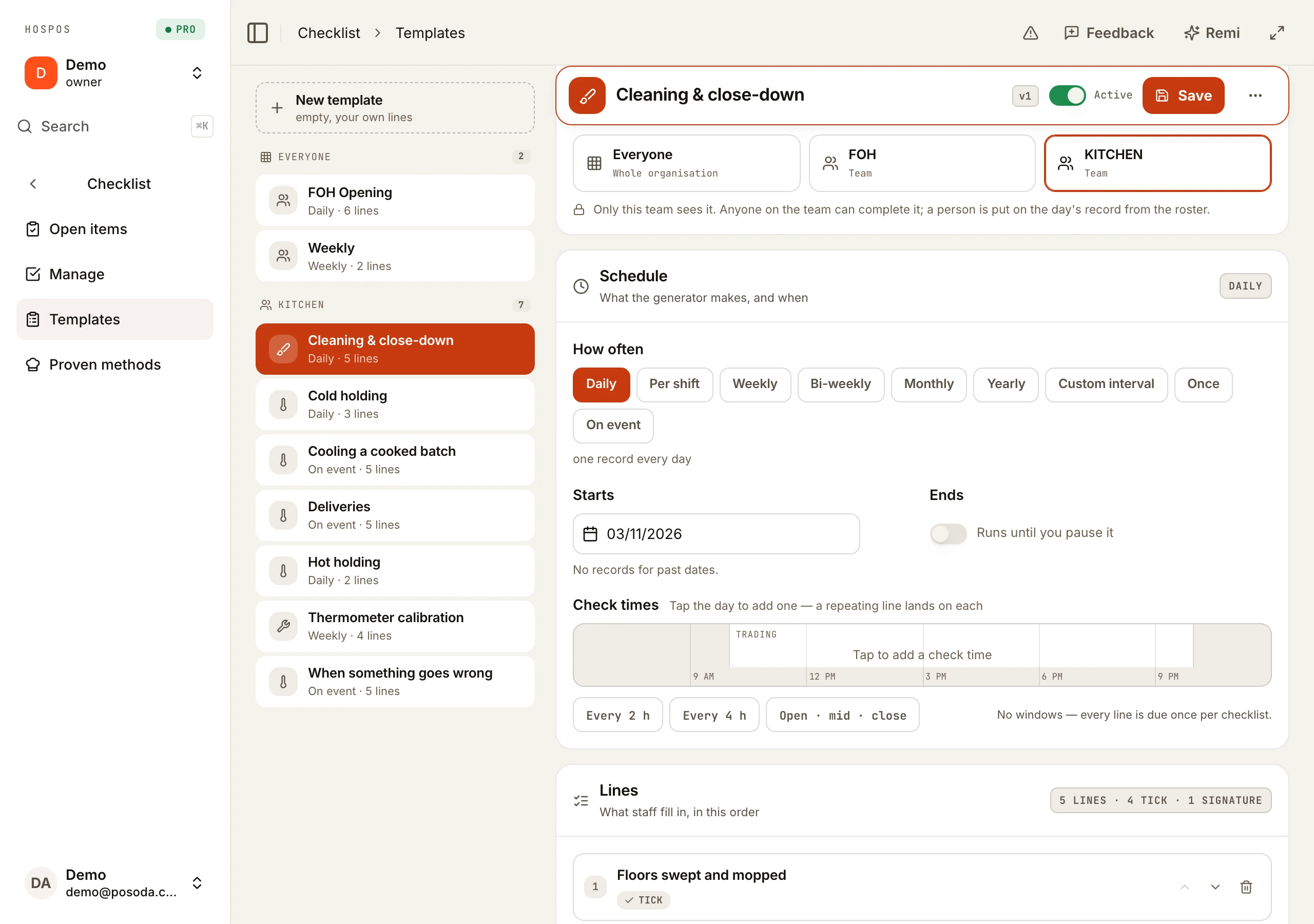
An On event template is never scheduled: staff start one themselves when it happens — a delivery arrives, something goes wrong.
Add the lines
Choose Add line and pick what kind it is: Tick, Number (use this for temperatures — set the safe range), Choice, Text, Photo, Time or Signature. Write the line text staff will read, then Done.
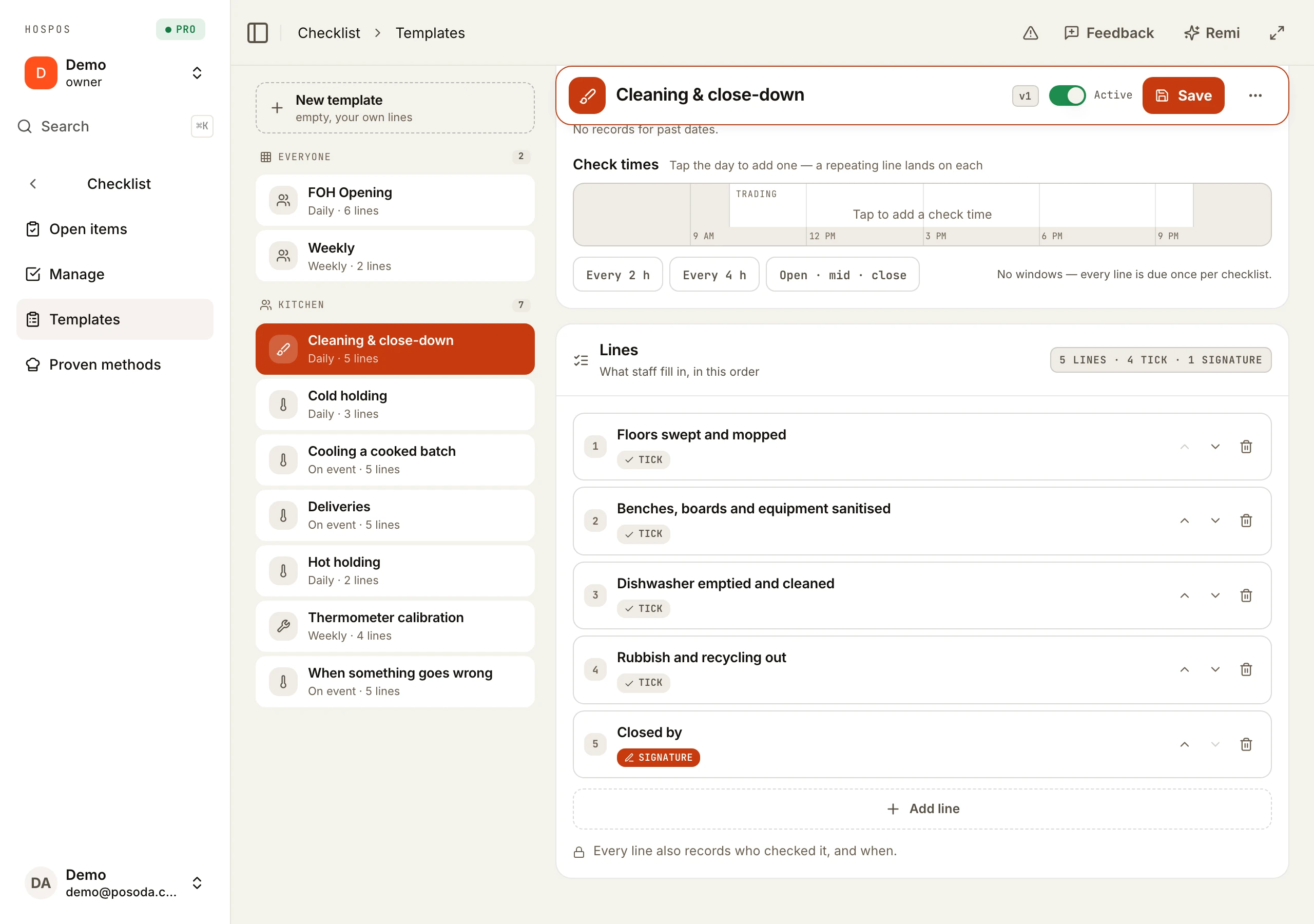
When the template is ready, choose Save. Save stays greyed out until you change something; once you have, Discard appears beside it to throw the changes away, and leaving the page with unsaved changes asks first. The Active switch beside it pauses a template without deleting it.
Where staff complete it
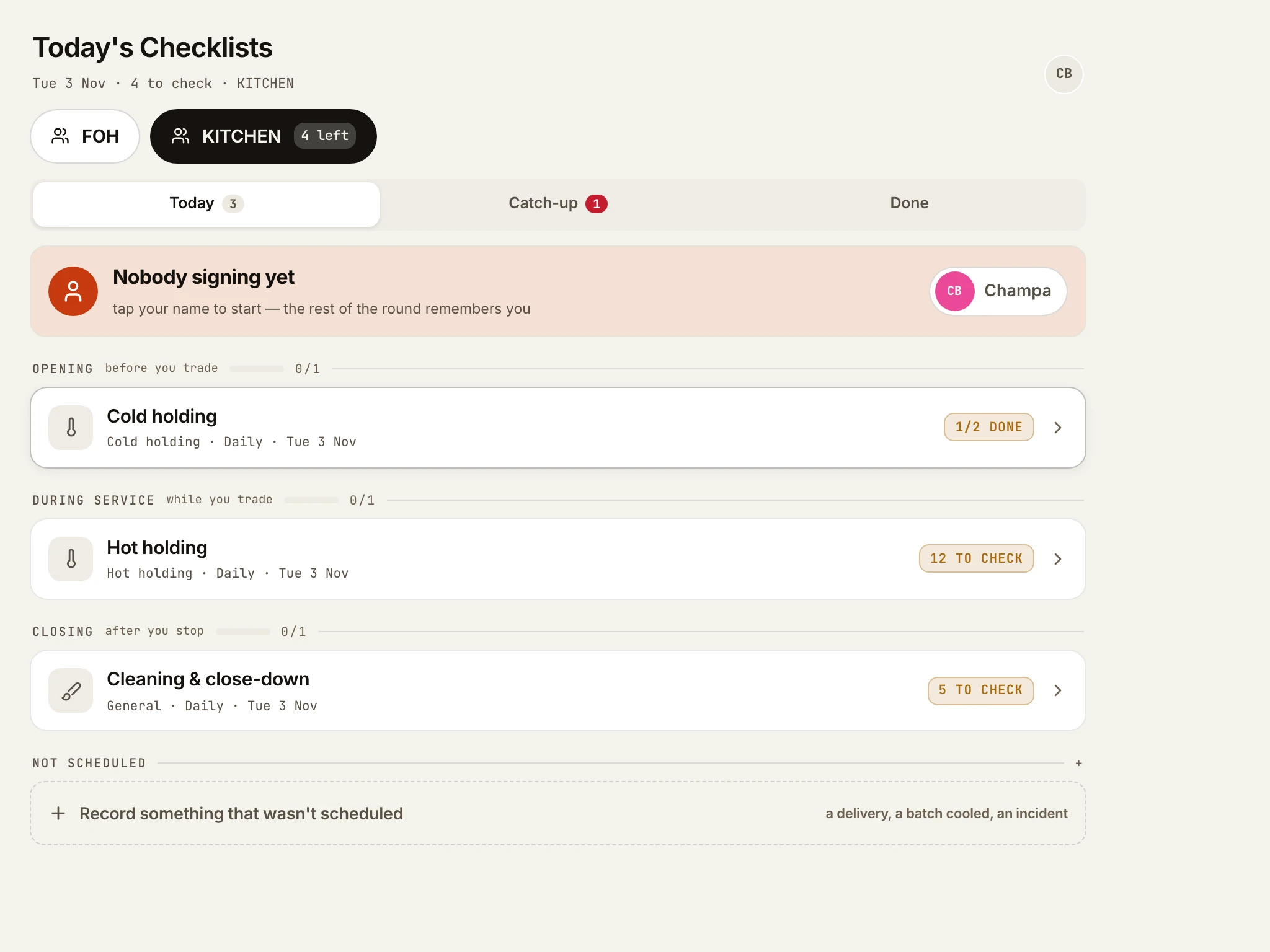
On the staff tablet, checklists open on Today's Checklists. Staff see what is due Today, anything missed under Catch-up, and what is finished under Done, and fill each line in where it is. If you have more than one team, each team has its own tab.
Before filling anything in, a staff member taps their name. The tablet offers whoever is clocked in (everyone, if nobody is) and remembers them for the rest of the round, so every line is signed by a real person.
If something doesn't look right
- "At least one line is required" or "Template name is required" — Save needs both.
- A new template isn't on the tablet yet. Copies are created ahead on a schedule. To create them now, go to Checklist ▸ All checklists and choose Generate instances.
- Changed the team after the fact? Copies already created keep the team they were made with.
Last checked against the app on 2026-11-24.