Build and publish the week's roster
Add shifts for each area, assign your team, then publish so staff see their hours.
HospOSBeautyOSRetailOSThe roster opens on next week, because that is the one you are usually building. Shifts stay a draft — visible only to managers — until you publish.
Open the schedule
Rostering is part of Workforce, an add-on to the POS plan (a salon's stylists include it). Without Workforce the Rosters section shows time off — Calendar and Request — and Hours, the read-only hours log.
Go to Rosters ▸ Schedule. Each area (for example FOH and Kitchen) has a row, each day a column, and the header of every day shows its staff and hours. If you can see labour costs, it also shows the day's rostered wages and what they are as a share of the day's sales target, for example "$465 Under · 19% of sales". Hover it for the sales target and the wage budget (the sales target × your labour target). The traffic light reads Under (green) below your amber line, Near (amber) from the amber line up to the budget, and Over (red) past it. A day with no sales target shows "—", and when the whole week has none, a note beside the labour button says "No sales target this week. Set one". The toolbar's labour button shows the same for the whole week ("$3,715 Under · 19% of sales"). Choose it to open Rosters ▸ Labour budget on that week's month, where the sales targets and your labour target are set. Wages are costed the way payroll pays them: time worked on a public holiday is time and a half (the day shows PH/OT), and so is time past your weekly overtime line if you set one in Payroll settings. Anyone with no pay rate yet isn't costed — the day says "1 no rate" instead. On a phone, the day you pick shows the same line above its shifts. Set the sales targets, the labour target and where amber starts (80% of the budget unless you change it) in Rosters ▸ Labour budget; the Edit link on the breakdown goes there. Changing the labour target or the amber line needs permission to see financial reports. Use ◀ and ▶ to change week, or This week to jump back.
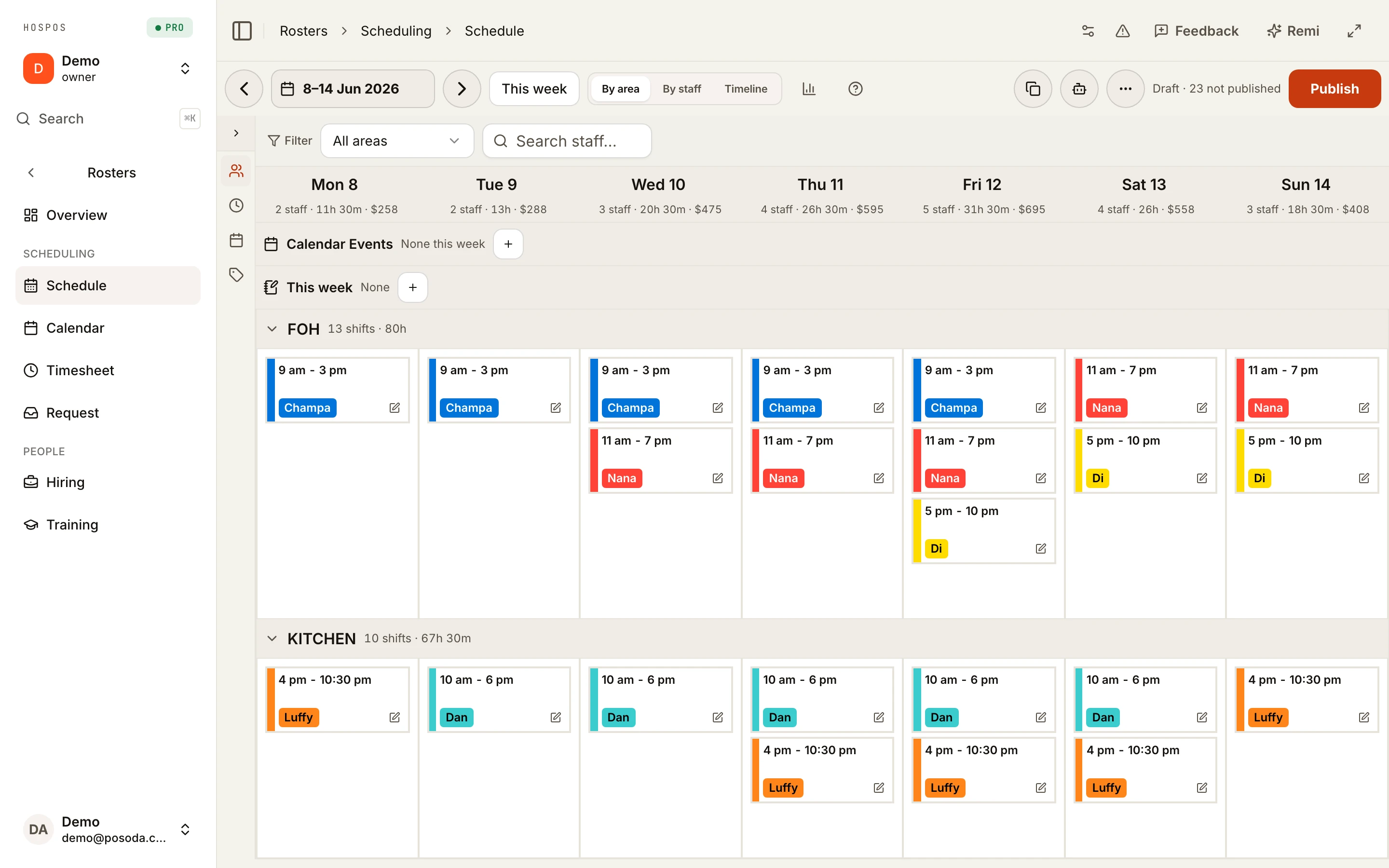
Add a shift
- Hover over the day under the right area and choose Add shift.
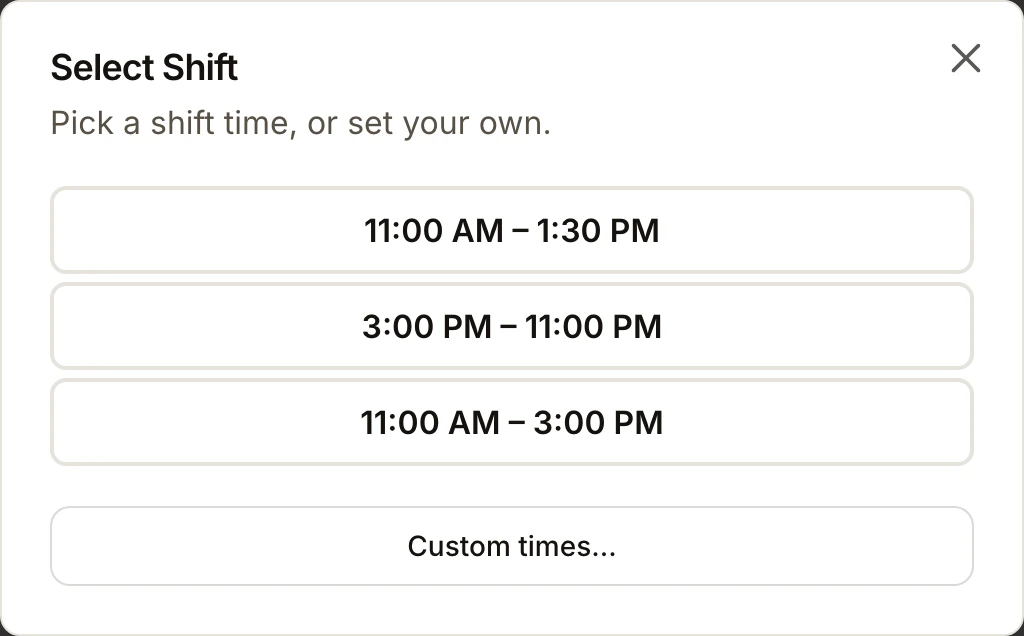
- Pick one of your saved shift times — the shift is added straight away — or choose Custom times… to set your own.
Assign someone and adjust the times
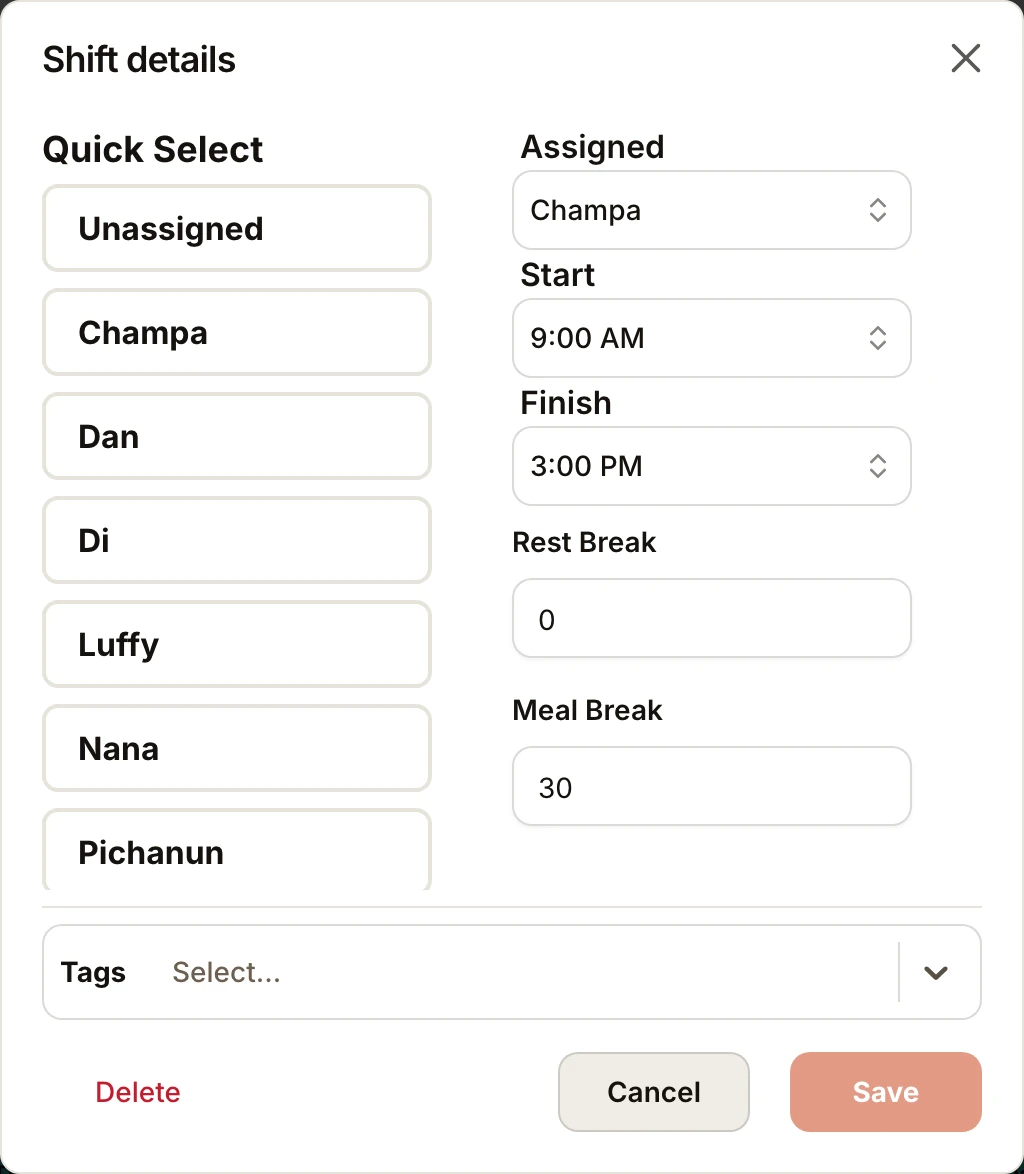
Click a shift to open it. Under Quick Select, each person shows what this
shift would cost with them on it, as payroll will pay it (for example
"$134.75", or on Christmas Day "$168.75 incl. $56.25 public holiday"), what it
would do to the day ("Near · 82%"), and their hours for the week before and with this
shift against their contracted hours ("20h now → 23h 30m · close to 28h", "20h
now → 26h 30m · over 24h by 2h 30m"; with no contracted hours, "8h this week if
added"). Someone on a salary shows Salary: their hours count, but the
shift isn't costed for them. Someone with no pay rate yet shows No rate.
Both are listed after everyone who can be costed. The cheapest person who can
take it is marked Cheapest. On a shift with a position, people Trained
for that position are listed first, then people in training, then everyone
else, each cheapest first; on a shift with a team but no position the list is
cheapest first, and Trained names the positions they're trained for
("Trained · Barista"). People who can't take it (already on a shift then, or on leave)
are listed underneath with the reason, and the roster won't save a second,
overlapping shift for the same person. A break can't be negative or as long as
the shift. Tap a name under Quick Select (or
choose one from Assigned), type the Start and Finish (for example 9am, 17:30;
every quarter hour is offered as you type), and set any Rest break (min, paid) or
Meal break (min, unpaid), then Save. A finish earlier than the start is
the next morning. On the night the clocks go forward, a time they skip (such
as 2:30am) is refused with a message instead of being moved to 3:30am.
Delete removes the shift (a shift you haven't saved yet has no Delete). A shift whose clock was corrected can't be deleted: the correction stays on the payroll record, so Delete is greyed out with Clock corrected: this shift and its audit stay on the payroll record.
If the area has positions, choose the shift's Position, and Also covers
for a second job the same person does at the same time (for example Pass while
on Washer/Fryer). Anything else goes in the Note: which tables (1-9,
Outside), "Lunch", "Training with Mai". Your most-used notes appear under the
box as one tap. The note shows under the position on the roster, on the staff
terminal and in the staff app, so everyone can read it. Tags are gone: a shift
from before still shows its old tags in grey, with Move to note.
Copying a week. Copy last week shows last week's shifts on this week as a preview first. Nothing is saved until you apply it. If this week already has shifts, the button says how many it replaces — Replace 12 shifts with last week — and applying removes them first. Shifts someone has already worked stay. On an empty week the button is Apply copy.
Loading a saved week. In ⋯ ▸ Saved weeks ▸ Load a saved week, pick a week to preview it. Tick the areas you want — all are ticked, or just the one you've filtered to — and choose Replace this week's shifts in these areas or Add to what's already there. Replace removes only the ticked areas' shifts (never worked ones); Add removes nothing. The button says what will happen — Replace 8 shifts with 10 or Add 10 shifts.
Plan for a function or a busy night
Under each day's name you'll see that day's sales forecast (for example "$3,522") and + Event.
Everything you add to the calendar starts from one +, on the Calendar Events row or in the sidebar's Events tab. It asks what you're adding: an Event (a function or tour, which changes how many staff you need), Time off for someone, a Public holiday, or a Day note (a reminder that doesn't change staffing).
To staff up for a function, choose + Event under its day, type a name ("Private tour"), set From and To (7:00pm to 10:00pm is filled in; an end before the start runs past midnight), and pick what it does under Staffing: Double staff (the default), ×1.5, another multiplier, or Add people to name a team and how many extra. You can apply a multiplier to the whole venue or only some teams. Before you save, the dialog tells you what Auto roster will add, shift by shift, for example "4 open shifts: 19:00–22:00: 2 Front of house, 2 Kitchen", and how many people each team will need ("2 rostered → 4 needed"), and whether your team has people free to fill them. The event only ever changes the hours you gave it: if part of the window needs extra people for less than an hour (say everyone leaves at 10:30pm and the event runs to 1am), the extra people work just that part, and the dialog says so, rather than bringing anyone in before the event starts. If someone's own shift ends just as the event starts, they stay on instead of a new person being called in. Choose Save event, then Auto roster: before it adds anything it shows what it will add, day by day, and why, who on your team could fill it, and what it does to the week's labour cost and wages as a share of your sales target. Then Add shifts and fill adds those open shifts and fills them. Shifts outside the event stay as they were, and running Auto roster again, or from another tab, doesn't add more. The event shows on the day as "★ Private tour ×2 7p–10p" (on a phone, tap the day: the event, the forecast and + Event are under its totals); click it to change or delete it. If you change the time of an event that already has its shifts, they move with it when you save. Deleting an event deletes its open, unpublished shifts too. If any of its shifts is published or has someone on it, you're asked first, with each person and shift named: Keep them as normal shifts (the default: they stay exactly as they are, just no longer tied to the event) or Remove them too. A copy of an event's shift to other days is an ordinary shift.
Click a day's forecast to see where it comes from: the same day in each of the last three weeks, with what each one took, and the sum that gives the forecast. Days with an event, a public holiday, no sales, or that aren't over yet are left out and say why, and an earlier week is used in their place. A forecast you typed on Reports ▸ Costs & Budget ▸ Sales Budget is used instead, and the average is still shown beside it. Under Staff to sales you can set, per team, "one more person for every $X of sales an hour". The popover then lists, hour by hour, the forecast and the people it calls for, to the nearest person ($612 at $150 an hour is 4). Auto roster fills each hour up to that (or to the shifts you built, if more), even with no event, in shifts of at least three hours (you can change that under Shortest forecast shift); an event then multiplies that figure in its window only. In Auto roster's preview, choose Within wage budget (the default when the week has a sales target) to add forecast shifts only until each day's wage budget is used, Full forecast for all of them, or Events only. Shifts left out to stay in budget are listed.
Timeline shows people on (a solid line) against people needed (a dashed line), with short times in red. Copy last week leaves out the shifts Auto roster made for last week's events and forecast, and says how many.
Publish
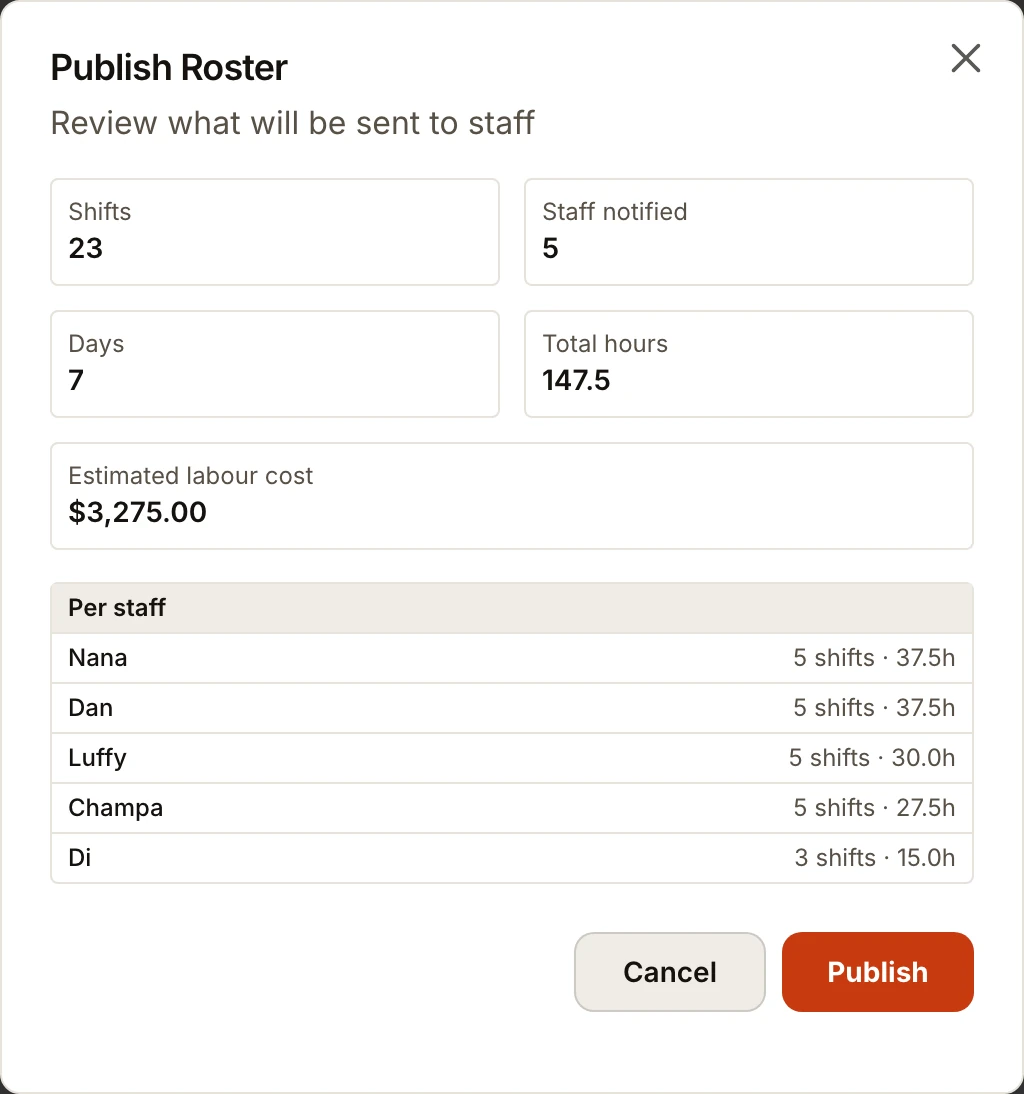
While a week is a draft, the toolbar says how many shifts are not yet published. Choose Publish (it carries a text label on a phone too) to review the week — shifts, staff who will be notified, days, total hours and estimated labour cost (costed as the day headers are; shifts for anyone without a pay rate yet are counted, not costed) — then Publish again to send it.
Once the week is published, ⋯ ▸ Print prints it on one landscape A4 page for the staff room: your venue and the week at the top, then each day. By area shows every shift with the person first, the hours and the position with its note ("Dan · 11:30am–9:30pm · Floor · 1-9"), and Open where nobody is on yet. By staff gives one row per person with their hours for the week, open shifts first. A busy week is shrunk a little to fit. A week too big to read on one page carries on to a second, with the day headers repeated, and never splits a row.
When a roster rule holds shifts back
If your venue has roster rules (Rosters ▸ Rules: max days in a row, the longest rostered shift, min rest between shifts, max hours a week, people who must never be on together), every shift is checked as you build. Rules are standing: they apply to every roster, every week, until you change them. You can write them in your own words under This venue's rules, one per line (for example "No one more than 5 days in a row" or "Kate and Mark are never on together"). Check and save shows how Remi read each new line, and whether it blocks or warns, before anything is saved. A line Posoda can't check yet, such as "Anna is our best", stays in the box as a note and changes nothing. A shift that breaks a blocking rule has a red mark and a red outline; one that breaks a warning rule has an amber mark. Hover the mark, or open the shift, to see which rule and why (for example "7h 30m rest after Tue 11:30 PM (needs 10h)"). The shift dialog offers Swap to the best person the rules allow, in one click, and shows how much the swap changes that shift's wages (for example "−$8.00 wages"). Rest is counted between working days, so a lunch and a dinner shift on the same day is a split shift, never a short rest: the rest that counts runs from the dinner's finish to the next day's first start. Hours a week are counted over your venue's roster week: the shift that takes someone over (for example "44h rostered, week of Mon 23 Nov (max 40h)") is held back, and the shifts before it can still go out.
The issues button shows one number: the shifts held back (they can't publish until fixed), with the octagon. The same number, in the same words, heads the issues list ("11 shifts held back — can't publish until fixed · 7 by a certificate that runs out first · 4 by a roster rule", then "2 shifts warn — still publish") and the Publish dialog. Held-back shifts are listed first, each linked to its rule. While any shift breaks a blocking rule, the dialog lists why and offers no Publish all. Fix those shifts, or choose Publish the other shifts to send everything else now. Shifts already published count too: if Tuesday to Saturday are out and you add the same person on Monday, Monday is held back, because it would make six days in a row. A shift whose finish is before its start is held back too, with "finishes before it starts", until you fix its times. When you open a shift, anyone a rule rules out says which rule, for example "Would break a roster rule: 6 days in a row". Auto roster never gives anyone a shift that would break a rule: that shift stays vacant.
The issues button also lists every open shift and why it is open: a rule the shift breaks whoever takes it (a 12h 30m shift under "Max 10h shift"), who is free (Give to puts them on it), who could take it if a rule were relaxed (with a Rule link, and Give anyway when the rule only warns), and who is busy or unavailable then. People with no availability on file are named once above the list, since Auto roster skips them, and a shift only they could take says "No availability on file, so pick by hand". After Auto roster runs, its message says how many shifts it left open, and this list explains each one.
When someone's certificate runs out before their shift
If your venue tracks certificates (a Duty Manager certificate, first aid: add the kinds you track under Certificate types on Staff ▸ Qualifications, then record who holds one), each shift is checked against the certificate's expiry on the shift's own date, not today. A shift that starts after, or runs past, the end of its person's certificate gets a certificate mark; it is red when a skill requirement on that team needs the certificate (for example a duty manager on Front of house from 11:00, or one with an LCQ or a Manager Certificate on the whole venue from 12:00 to 22:00, set on Rosters ▸ Rules ▸ Skill requirements), amber otherwise. The issues button says why under the shift, for example "Duty Manager certificate expires Thu 26 Nov — 2 days before this shift" or "… expires during this shift, at 11:59 PM", with Renew, which opens the Qualifications tab with that certificate's renew form already open. Under the totals, the list counts the week's shifts on a certificate that runs out first and splits them the same way ("Certificate runs out first on 10 shifts: 7 held back · 3 not set to block"). If nobody else on the team holds a current certificate then, the requirement's own line shows the gap, after midnight too ("Tue 24 Nov, 12:00 AM – 1:00 AM: 0 of 1 Duty Manager certificate on"). The Publish dialog repeats the certificate lines for the shifts it is about to send, and says they still publish.
To make a lapse hold the shift back instead (a licensed venue usually wants this for its Duty Manager certificate), go to Rosters ▸ Rules ▸ Block publishing and switch that certificate on. Like the other rules it has two levels: in Every venue (company access) it applies at every venue and is locked there, marked Company; in This venue you can add more, marked This venue, but never switch a company one off. The same switches sit on Staff ▸ Qualifications. The top of the issues list says which certificates block publishing and whose rule that is (for example "Duty Manager (company rule)"), with Change to go to the switch, and each certificate line is tagged held back · company rule, held back · this venue or not set to block, and the shift's card shows the octagon instead of the certificate mark. Held shifts sit under Held back in the issues list and in the Publish dialog, each with Renew; the dialog says how many are held by a certificate and how many by a rule, and Publish the other shifts sends the rest. Its buttons stay at the bottom of the window however long the list is. The same check runs when you save a published shift, so you can't hand a published shift to someone whose certificate has run out by then. A shift that was already published when its certificate stopped covering it (for example a renewal revoked later) is listed under Already published — give it to someone else, or renew. When you open a shift, anyone whose certificate would run out by then says so under their name ("Duty Manager certificate expires Thu 26 Nov — 2 days before this shift"); if that certificate blocks publishing they're listed after everyone it wouldn't block.
To renew, choose Renew, pick the new expiry (or +1 year / +3 years) and Save renewal. A date is required: a certificate is never quietly changed to "no expiry". Saving twice, or from two screens at once, records one renewal.
To keep the paperwork with the certificate (a licensing inspector will ask to see it), give a certificate its Certificate number when you record it, and use Attach a copy for a PDF or a photo of the card (up to 10 MB each). A renewal keeps the number unless you change it, and the new card's copy goes on the renewed certificate. The paperclip on each row of Staff ▸ Qualifications shows how many files it holds. Open it to view a file, add another, or remove one. Removing a file deletes it for good. Only managers can see these files.
Staff with the Posoda Staff app get a notification that their roster is out. Shifts nobody is assigned to are published too, but nobody is notified about them — offer them instead (below).
Offer an unassigned shift to your team
Once the shift is published, an unassigned shift's card says Unassigned with a megaphone beside it. A shift that's still a draft has no megaphone: publish it first, then offer it. Choose it, and the card lists who the shift would reach — for example Reaches Mia, Aroha — and who it wouldn't, grouped by why: Not set up for this position, Already rostered then, Time off then, Would go over their weekly hours, or a rule from Rules such as 6 days in a row. Choose Offer to 2 eligible staff: only those people are told. The card then reads Offered · 2 told.
On a phone, the day's list shows Offer beside each unassigned shift; tap it, then Offer to 2 eligible staff in the panel that opens.
Staff see it in Posoda Staff under Pick up shifts (on Today and at the top of Roster), and tap Claim, then Claim shift. Only someone who can work the shift's position, holds a current sign-off for it, is free then (at any of your venues, including time off booked at another venue, and inside their availability on every day the shift touches) and would break none of your roster rules — a warning rule too — can claim it; anyone else sees the shift folded away with the reason. If the team would be short of a certificate during the shift (a skill requirement such as 1 Duty Manager certificate on, with nobody else holding one then), only someone with a current certificate can claim it — whether the others' ran out or they never had one. When the requirement accepts more than one certificate (1 Duty Manager certificate or Manager Certificate on), holding any one of them is enough. If someone else already covers it, the certificate isn't needed. The first eligible claim gets it: the card shows their name and Picked up on any roster you have open — within about 15 seconds, on every computer or phone with that week open, whoever posted the offer.
To choose who gets it instead, turn on Claims wait for a manager under Rules ▸ Open shifts. Claims then show on the card as 2 offers; choose it to see who asked, best fit first (furthest under their weekly hours), and Approve one. If you use Posoda Staff yourself, you get a notification when someone asks; tap it to open that week's roster. Until you decide, staff can take their ask back with Take back on the shift in Posoda Staff. The others are told it went to someone else, and someone you declined can't ask again for that shift. On a phone, shifts with claims waiting are listed at the top of the roster: tap Review, then Approve. Take it down stops the offer. Putting someone on the shift yourself, or unpublishing it, also takes the offer down.
The ⋯ menu's Clear this week and Unassign everyone this week say how many shifts they would touch ("Clear this week (42 shifts)…"). Once a week is published it is locked: to change it, open ⋯ and choose Unpublish, make your changes, then publish again. Notifications already sent stay sent.
If something doesn't look right
- No Add, Copy or Publish buttons? You can view the roster but not edit it. Ask an owner to give you the Edit Roster permission.
- "Shift is published!" when adding a shift — the week is published. Unpublish it first.
- Publish is refused with "breaks a blocking roster rule" — someone else changed a shift since you opened the week. Reload, fix the red shifts, then publish.
- "Failed to save shift: … breaks a blocking roster rule" when you pick someone — another manager has just rostered that person on a published shift, and yours would break the rule. The shift stays open with the person marked Would break a roster rule: pick someone else.
- "… just picked this shift up. Your copy is older — reload the roster before changing it." — someone claimed the open shift after you opened the week. Reload and you'll see them on it; you can still move it after that.
- "… picked this shift up from the open shifts. Reload the roster and change it there." — an older app tried to move a shift someone picked up. Change it from the roster instead.
- "Someone else is saving this roster right now. Try again in a moment." — several managers published or saved this venue's roster at the same instant and yours waited its turn for 10 seconds. Nothing was saved from your attempt: try again.
- Rules has two tabs. Roster holds the rules a roster is checked against when you publish. Time & pay (for anyone who runs the timesheet) sets when the staff terminal asks why, whether early clock-ins are stopped, the payroll thresholds, and whether shifts are approved before payroll (with auto-approve, once that is on) — see Check timesheets and export hours to PayHero.
- Company rules have no buttons on Rules ▸ Roster — they belong to every venue. If you have company access, switch Editing for to Every venue to change them.
Last checked against the app on 2026-11-24.