Check timesheets and export hours to PayHero
See who worked when, fix a missed clock-out or a wrong time, and export the hours to PayHero.
HospOSBeautyOSRetailOSClocking in and out works on every plan, and so does the hours log. Approving timesheets, the pre-payroll checks and exporting hours for payroll — most of this article — are part of Workforce, an add-on to the POS plan (a salon's stylists include it).
The hours log (without Workforce)
Without Workforce the Rosters menu shows Hours instead of Timesheet. It opens on this week; change the period at the top. The first table lists each person's hours for each day and for the period, and says when someone is still clocked in (for example 1 not clocked out). Below it, every clock-in and clock-out, with the rostered times and the hours worked after breaks. Click a person to see only theirs, and Show everyone to go back.
To fix one clock, choose Fix clock on its row, or Add clock-out on a shift nobody clocked out of. This opens Correct the clock, the same one the timesheet uses: type the time they really started or finished, choose How do you know?, and say why. The change is kept on record with who made it. You need permission to see financial reports to correct a clock. There is no export, approval or Checks tab in the hours log: Approve timesheets and send pay with Workforce says what Workforce adds and what it costs.
Staff clock in and out on the till (Clock In on the login screen) or from their own phone in the Posoda Staff app, and take breaks the same way. Every clock lands on the timesheet, where you check it and export the hours for payroll.
Clock in on the till
- On the till's sign-in screen, choose Clock In, then enter your PIN.
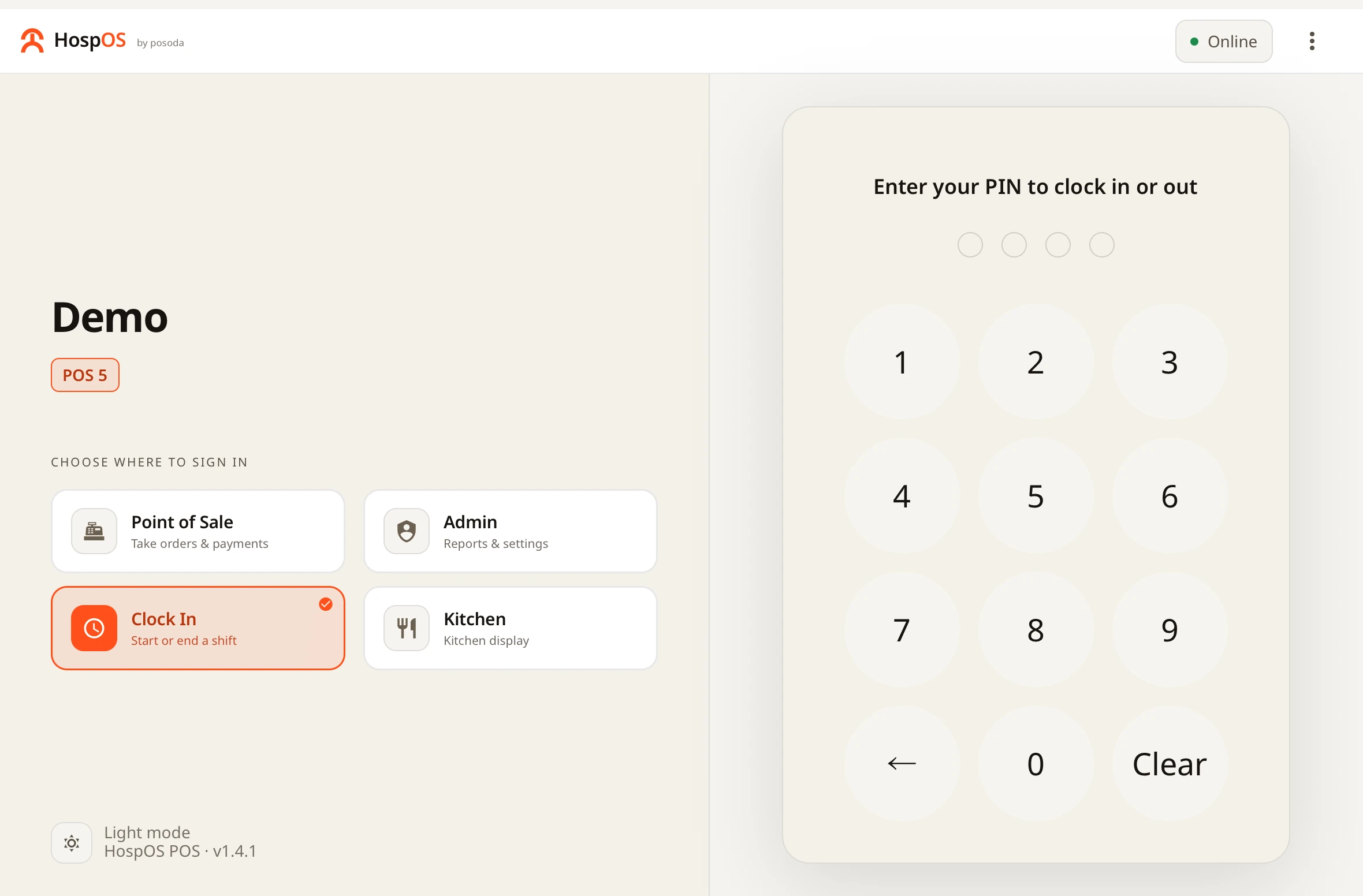
- Choose Start shift. If one rostered shift covers now, the clock attaches to it. If more than one could, pick yours; with nothing rostered, pick the area you're working (or go straight in when the venue has no areas). The camera opens for a quick photo of you — tap Take photo (or Cancel to stop without clocking). Your photo then shows on your clock card.
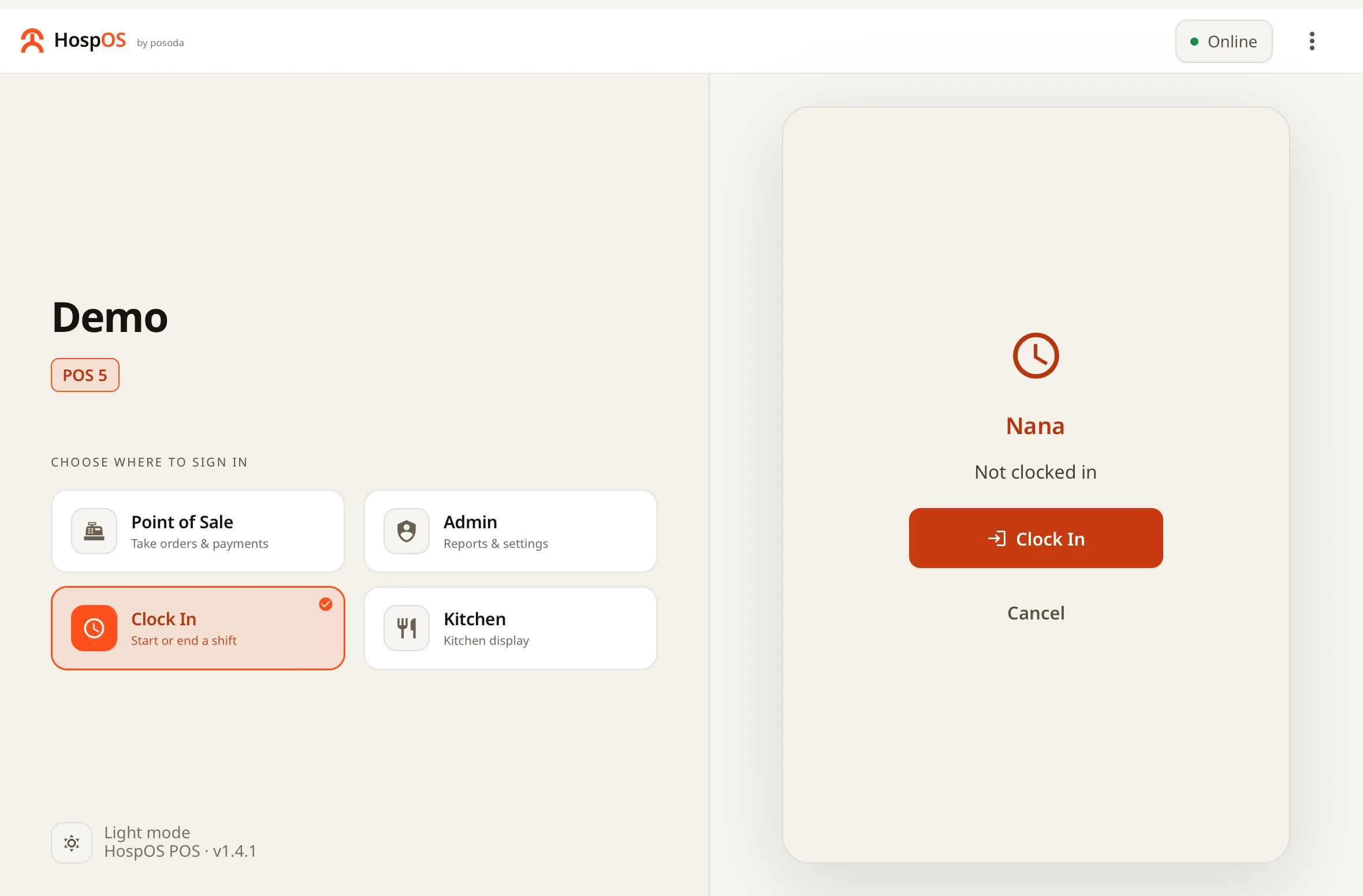
- Breaks and finishing work the same way: enter your PIN and the card offers Rest break, Meal break and End shift, or Back on shift while you are on a break. Beside it are your last shifts this week and Change your PIN. Tap Done when you've finished, so the next person gets the keypad.
If the clock is more than 10 minutes off your roster (or you have nothing rostered), the till asks why before anything is recorded, the same as the staff terminal below: tap a reason, or Something else… and type it. Cancel, or leaving it for a minute, says Not clocked in — a reason is needed.
Clock in on the staff terminal
On the staff terminal, enter your PIN: it opens on Me, with the clock first. Choose Clock In. The terminal takes a photo as you tap — there is nothing to press. If you are more than 10 minutes late or early for your rostered start (the venue can make that tighter), it asks why before anything is recorded — for example Why are you clocking in 31 min late? Tap a reason such as Running late / transport, or Something else… and type it. Until you pick one you are not clocked in: Cancel, or leaving it for a minute, says Not clocked in — a reason is needed. End Shift asks the same when you finish early or late, and a clock-in with nothing rostered asks too. End Shift finishes in one tap — your PIN already said it's you. With no camera, the clock still works; the timesheet just shows no photo for that clock.
If the venue turned on Stop clock-ins more than 10 min before the roster, a clock-in more than 10 minutes before your rostered start (the venue's clock-in allowance) is not recorded, even with a reason: the terminal says Too early to clock in — your shift starts at 5:00pm. You can clock in from 4:50pm, or ask a manager.
An overnight shift is still your shift after midnight: rostered 23:38 – 07:38 and arriving at 00:08, the card says Rostered 23:38 – 07:38, asks Why are you clocking in 30 min late?, and clocks you in to that shift — never a second, unrostered one. However late you are, if your shift is still running it is still your shift: two hours into a four-hour shift, Clock in asks Why are you clocking in 125 min late? and clocks you in to it. The time you are clocked in at is when you tapped Clock In, not when you picked the reason. Only once the shift has ended (more than 10 minutes past its finish) does the card say Your 16:06 – 00:36 shift has ended · clocking in starts a new one; clocking in then asks why and starts a new shift, and the one you missed stays unclocked for your manager. Someone who clocked in stays on shift — and can always clock out — until they clock out, for up to 16 hours on the clock (or the venue's longest shift, if that is longer), whatever the roster says. Through midnight and past the end of the business day too, so a bar shift from 10pm to 4am can be clocked out of at 4:30am, on the terminal, the till or the Posoda Staff app. Someone who stays back is never told they are Not on shift: rostered 7:45am–10:45am and still working at 12:47pm, the terminal shows On shift · Since 07:45 · rostered until 10:45 with End shift, and the clock-out is saved at 12:47pm, the real time. It asks why (it is more than 10 minutes past the roster), and the shift waits for you to approve the extra time. Their next clock-in also ends it.
When someone forgets to clock out of a rostered shift, Posoda clocks them out overnight at their rostered finish, so the shift is paid. Say Sam was rostered 6pm–10pm and forgot to clock out: overnight Sam is clocked out at 10pm, and the shift waits on the Checks tab under Every automatic clock-out is checked, for example Clocked out automatically at the rostered finish — no clock-out was punched · paid 4h 00m. It's a warning: the hours are in the PayHero file either way. If 10pm is right, choose Keep the rostered finish. If Sam left earlier or stayed later, choose Correct the clock… and set the real time. Either one takes it off the list.
A shift with no roster (a walk-in) is never guessed. It stays open until their next clock-in, which closes it with no hours: it then waits on Checks under Every shift has a clock-out, for example End unknown — never clocked out; their next clock-in came 15h 30m after this one, until you choose Correct the clock…. When that happens, the terminal tells them as they clock in: Your Thu 19 Nov 6:03pm shift had no clock-out. A manager will set when you finished — it isn't paid until then. If they come back while the open shift is still running (within 16 hours) and a rostered shift of theirs is starting, the terminal shows End shift and, under it, Forgot to clock out? Start your 10:00 – 16:00 shift instead. On their terminal, Your last shifts shows a closed one as No clock-out with You didn't clock out — your manager will set when you finished. Until a manager sets the finish (for up to a month), it is also listed under For you on their Me screen, with the day and time they clocked in and A manager will set when it ended. It isn't paid until then. On the Checks tab someone still at work reads Still on shift — paid once they clock out, exactly as their timesheet row does.
On the timesheet each shift is listed under the day it was clocked in, with its rostered times beside it: a Friday 23:38 shift clocked in at 01:07 shows under Sat 14 Nov with R Fri 23:38–07:38.
Rostered shifts nobody clocked into are listed above the shifts: 2 rostered shifts nobody clocked into · not paid, each with its rostered time and No-show. If the person did work it, Add clock times opens Correct the clock, headed with the person, the day and the rostered time (for example Luffy Fam · Wed 18 Nov · R 10:00–15:00): enter when they worked and choose what happened — nothing is picked for you, and break reasons aren't offered on a shift with no clock. It is saved with your name and listed on the payroll summary.
Sometimes they did clock, just on another row: a clock-in too early to match the roster became a shift of its own, or one clock ran through two rostered shifts. The no-show then says so — Clocked 15:55–22:48 on a shift not on the roster, or Their 11:20–22:26 shift runs through this one — with Use this clock or Join shifts. Confirm, and the two become one shift: the clocked shift takes the rostered times (or widens to cover both), and the empty rostered shift is removed. The clock times stay exactly as punched, so pay doesn't change; the shift then shows how early or late it was against the roster, for you to approve as usual. Your name is kept in the shift's history.
The Posoda Staff app asks the same way: tap Clock in more than 10 minutes off your roster and a sheet asks Why are you clocking in 40 min late? Pick a reason (or Something else and type it) and you are clocked in. Cancel says Not clocked in — a reason is needed. Nothing was recorded. Picking a reason never asks for your location a second time: the app sends the reason with the location it already had when you tapped Clock in.
Review a week
-
Go to Rosters ▸ Timesheet. It opens on the pay week: last week while any of its shifts still wait for approval (it says Pay week · 13 waiting for approval), otherwise this week. From another week, Last week: N waiting for approval → takes you back. Use the date picker, or the arrow beside it for Today, This Week or Last Week.
If you pay fortnightly, the period is a fortnight: it opens on the pay fortnight (it says Pay fortnight · 13 waiting for approval), the shortcuts read This Fortnight and Last Fortnight, and the link back reads Last fortnight: N waiting for approval →. Choose weekly or fortnightly under Rosters ▸ Payroll ▸ Settings ▸ Pay period — see below.
-
All staff shows everyone; pick a name (in the list on the left on a wide screen, or the Staff menu above the shifts) to see only theirs, with how many still need approving.
-
Each shift shows the roster, when they Clocked in and out as the clock recorded it (with how late or over it was), the hours paid against the rostered hours (R 8.00), and — if you can see wages — the Wage cost and how far it is over or under the roster (+$61.20 vs R). If someone typed different times over the clock, the paid times show in red under it (paid 10:00–17:30) and the wage shows what that costs (+$65.00 over clock); the bar at the top adds those up for the week.
-
Under the clock times are the clock-in and clock-out photos. Tap one to open both side by side, large, with the person's name and when each was taken. A clock with no photo (no camera on that device, or deleted after 90 days) shows nothing on the row; a camera the person blocked, or a photo that failed to save, shows a small camera-off tile. Next to them is the reason given for a clock off the roster. The row already says how late (23m late under the times), so the line names which clock and the reason: Clock-in: Running late / transport: “bus didn't come” (on a phone, where there's no such note, it reads 23 min late · Running late / transport). A clock-in made on a shift a manager edited earlier still shows as clocked — its real time and how late — never no clock. A clock off the roster with no reason shows in amber. When it came from a device that can't ask yet (the till, or an older Posoda Staff app), it reads Clock-in: No reason given (at the till) under 41m late, with Add reason: pick what happened (or type it), and save. This is a warning — the shift still approves and goes to payroll as usual. If you'd rather hold those shifts until a reason is added, turn on No reason from an older till or app blocks payroll under Thresholds on Rosters ▸ Rules ▸ Time & pay; the row then adds · holds approval and the shift can't be approved or sent to payroll until the reason is in. Your name is saved with it — the row then reads 41 min late · Running late / transport · added by Demo Admin. The same shifts are listed on Checks under Every punch off the roster has a reason, with Add clock-in reason…. A clock recorded without asking at a venue that already asks (for example a clock time typed into the timesheet) shows 45 min late — no reason given with Add reason too; it is counted on Checks (recorded without asking) and never holds anything, even with that setting on. Clocks from before your venue started asking why aren't flagged at all.
On a laptop with the Remi panel open (or any narrow window), the shifts show as cards so nothing is cut off.
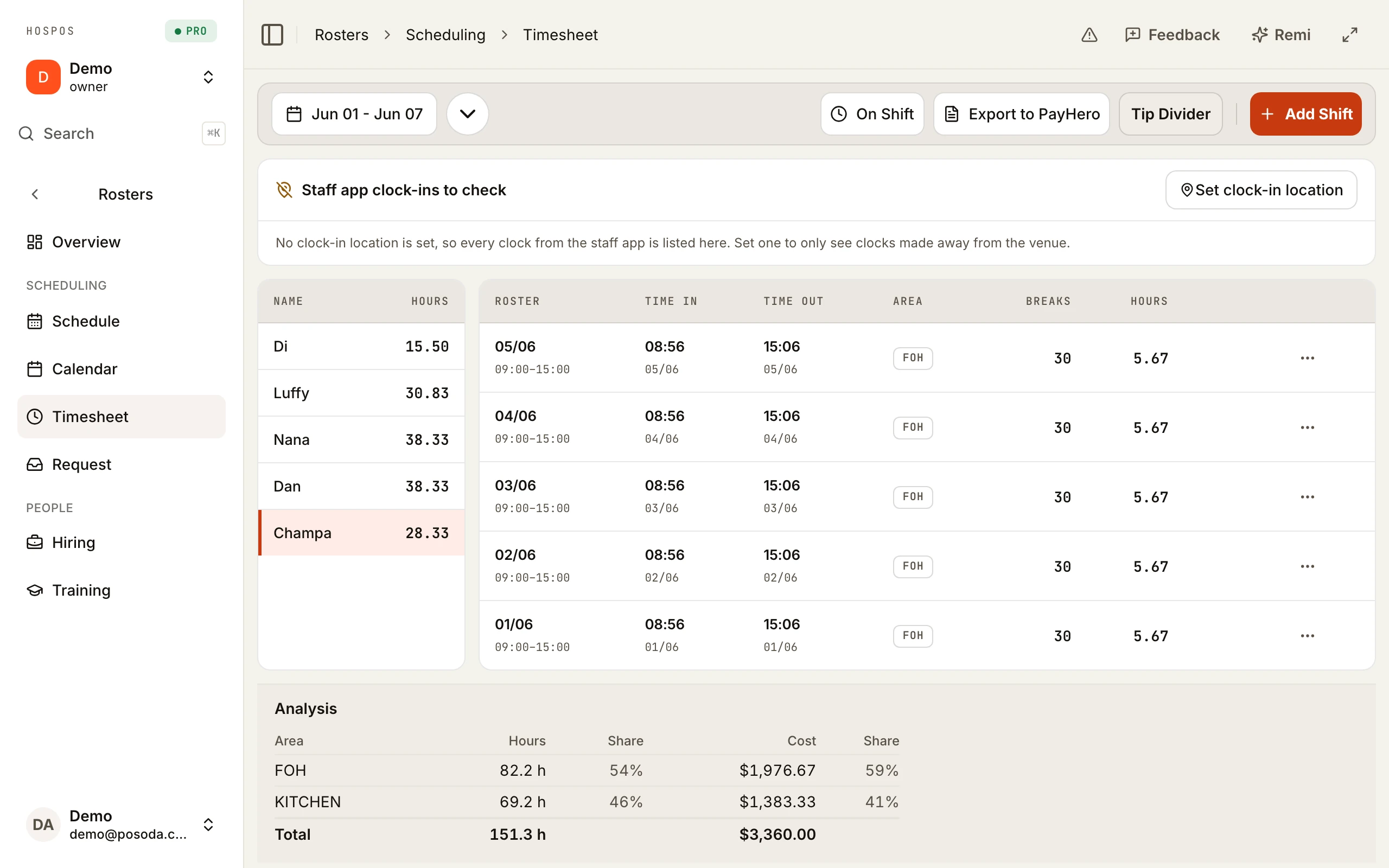
The bar at the top counts the week once, and the Checks tab and the export say the same numbers: how many shifts are approved out of those worked (22 / 40 approved), how many need attention (the Attention filter's number), and — if you can see wages — what goes to payroll ($3,183 to pay) and the week's paid hours beside it (136.54 h paid hours, breaks taken off), what the clean shifts waiting for Approve all come to ($3,081 ready to approve), and what the shifts that need attention come to ($2,605 held back). The held amount is the wage each of those rows shows, so it adds up to the Wage cost column under Attention. An approved shift that's paid past the clock with no reason given counts as held, and its row says Held from payroll.
Hours and labour cost by area are in Reports › Shifts (Labour by area), for any dates, with each area's % of hours and % of cost; under the Total come a Salary (1 person) row and Total labour (hourly plus salary). Labour cost means the same thing there, on Roster › Overview and at the top of the timesheet, and each says so in one line: Paid hours, breaks taken off. Salary ($1,381) shown separately. Not counted: 1 shift with no clock-out. (On Reports › Shifts the line leaves the salary out, since it has its own row.) A shift with a clock-in and a clock-out is counted at its times as they stand, even while a check still holds it; one with no clock-out yet isn't, and its row reads no clock-out yet. (Overview's cards are the week so far, so its salary line is the share up to today.) The cost uses each person's pay rate, set on their page under Staff ▸ Staff list (Pay rate ($/hour)).
Choose whether shifts are approved
Approving shifts before payroll is a choice each venue makes, and it starts off.
- Off (the default): every clocked shift counts as it stands. The timesheet has no Approve buttons, no Pending, Attention or Approved filters and no approval badges. The bar at the top reads 22 / 22 shifts counted for pay, and the export carries every clocked shift that can be paid.
- On: a manager approves each shift, or it approves itself (below). Only approved shifts are exported and costed. Changing an approved shift unapproves it, so it waits for a manager again.
To change it, open Rosters ▸ Rules, choose the Time & pay tab and switch Approve shifts before payroll. It saves straight away. If your company turned it on for every venue, the switch says Set by the company and can't be turned off here.
The next two sections, Let in-window shifts approve themselves and Approve the week, apply only while approval is on. With it off, skip to Fix a shift.
Let in-window shifts approve themselves
The Auto-approve card only shows while Approve shifts before payroll is on.
- Open Rosters ▸ Rules and choose the Time & pay tab (or choose Auto-approve off at the top of the timesheet, which opens it).
- Under Auto-approve, switch This venue on and pick a window — for example ± 10 min. If your company set a rule for every venue, it shows above with a lock; your venue can narrow it, not widen it or switch it off.
- Choose Save.
From the next clock-out, a rostered shift whose clock-in and clock-out are both within the window of the roster, with every break ended by the staff member, approves itself: it shows an outlined Auto-approved badge with how close it was. Everything else stays pending and says why — Clocked in 14m late, No clock-out, Not rostered (or Rostered after the clock-in / Roster not published), Roster moved after clock-in, Times edited by hand, Clocked off-site, Break never ended (someone clocked out while still on a break). The timesheet opens on Pending, so that list is your work.
Even with automatic approval off, three shifts always wait for you: Break never ended (they went back to work without ending their break, so it ran until they clocked out, for example Break never ended · ran 24m), Not rostered (someone clocked in with no shift on the roster), and a staff app clock made away from the venue, which shows an OFF-SITE chip until someone chooses Mark checked under Staff app clock-ins to check. Choose Review to approve any of them on purpose, or fix it first.
Approve all never includes a shift the window held back — not even after the window is widened or switched off, because the hold is saved on the shift. Each of those shows a Review button: check the times, choose What happened? (for example Manager asked them to stay, with a note if you like), and choose Approve with a reason. If the person already gave a reason at the clock, Review shows it as Reason on file (for example Clock-in: Busy service) and you can approve without choosing again. If you correct a held shift's times, its reason shows the times as they are now and what held it — for example Clocked in 5m late (when held: clocked in 14m late). The Approve all window lists every shift it will approve, by name, before you confirm.
Changing the window never changes a shift that has already closed, and clock times are kept exactly as punched. An auto-approved shift is like any other approved shift: change it and it is unapproved, and waits for a manager.
Salaried staff
Someone paid a salary still clocks in and out, so their hours are recorded, but their pay doesn't depend on them. On the staff member's page choose Edit, set Paid to Salary and enter their yearly salary. From then on:
- the staff terminal never asks them why they clocked in or out off the roster, and Stop clock-ins more than 10 min before the roster doesn't apply to them;
- their timesheet row shows Salary · hours recorded instead of a wage, with no early, late or over-roster flags, and Approve all includes them;
- Checks doesn't ask for an hourly rate or compare their hours or cost with the roster;
- the payroll file carries no hourly lines for them, and the line at the top of the timesheet shows their salary for the period, for example $1,247 salary (1 person);
- wherever money is shown — the row, the phone card, Checks, the export window, Labour by area and Roster › Overview — their wage reads Salary, and the salary is its own line beside the hourly cost (Salary $1,247 (1 person), not in hourly cost; in Labour by area it is a Salary (1 person) row under the Total, followed by Total labour). They are never counted with no pay rate.
Only someone who can export payroll can see or change a salary.
Approve the week
Approved shifts are the ones you are happy to pay. An approval describes the shift as it stood: if its times, breaks, person, area or notes change afterwards, the approval comes off by itself and the shift is Pending again. Its History says so, for example Unapproved: the shift was edited.
- Choose Approve all clean above the list (for example Approve all clean (10) · $570.51).
- Check the list of shifts that need attention — they stay unapproved — and choose Approve.
Each one says why it's waiting, and how to fix it:
- No clock-out, 20 hours or more, Break never ended and the other clock problems: choose Correct the clock…. It opens the same dialog as everywhere else, with the clock-out filled in from their last completed sale on the till that shift when there is one (for example Last seen on the till 9:42pm (last sale) — filled in above). Check the times and, if you like, choose What happened? (for example Forgot to clock out) and add a note: the reason is optional, and a correction saved without one is recorded as Corrected in the timesheet. It's saved as a clock correction, with your name, the time, the clock before and after and any reason, and shown in the shift's history. Correcting the clock doesn't approve the shift (on an approved shift it takes the approval off): approve it afterwards, when nothing else is holding it. Without payroll access the row says Ask someone with payroll access to correct the clock.
- Overlaps a shift with no clock-out: the earlier shift was never clocked out, so it runs over everything after it. Choose Correct the clock… on it. If that shift is from an earlier week, the row names its date, for example Thu 29 Oct.
- Worked well over the roster: choose Review to approve it on purpose, with a reason.
Approved the clean shifts first? The message says how many were held back, for example Approved 17 shifts · 15 held back to fix. Choose Fix them on it, or Review N that need attention, to open the same list again and fix what's left.
When several held shifts only started a little late or ran a little short — within the venue's roster threshold, and paid no more than rostered — the list starts with N started a little late or ran short, inside the venue's threshold, and are paid no more than rostered — approve them with one reason. It names each shift and what flagged it. Type the reason once and choose Approve N with this reason: each of those shifts is approved, with the reason kept on each approval and in each shift's history. Anything that raises pay goes one at a time, with its own reason: a late finish (even a few minutes), more paid time than rostered (an early start, a shorter break), over the roster, unrostered, hand-edited times, a 12-hour shift, or paid past the clock. A shift whose clock was corrected counts as clean, even when the correction pays more: the correction already has your reason on record. The list says how many of those are left, before and after. The same box is on Checks, under Every shift is approved.
That approves every clean shift in the range, for everyone (or for the person you picked) — exactly the shifts the list named, never one it didn't: if a shift changed after you opened the list, it stays pending and the message says N changed since you looked — left pending. So the bar always moves by the number you confirmed. The bar shows how many are approved; Pending lists what's left.
- Approve one shift: choose Approve on its row. Choose the green Approved to unapprove it, then confirm with Unapprove; it shows who approved it and when.
- No clock-out, a break never ended, or 20 hours or more: these can't be approved. Fix the times first, in the Approve all list, on Checks, or with Correct the clock on the shift.
- Not finished: the clock-out is still to come. It can be approved once the shift has ended, and its wage isn't counted until then.
- A break as long as the shift, or a break outside the clocked hours: these can't be approved either. Fix the break with a clock correction (a break that never ended is fixed in the Approve all list).
- Overlaps another shift: the same person has two shifts over the same hours, usually one shift entered twice. Neither can be approved. Delete the extra one, or fix its times. This counts shifts in the next or previous week too: a Sunday-night shift that runs into a Monday shift names it with its date, for example Overlaps Mon 9 Nov 1am–4am shift, on both weeks. A shift with no clock-out never overlaps that person's later shifts — its end is unknown, so it stops at their next shift. A forgotten Monday clock-out holds back Monday only; Tuesday to Sunday can still be approved.
- Held from payroll on an approved shift: another shift for the same person covers the same hours. It stays approved but won't be paid. Delete the extra shift or fix its times. A shift laid over an approved one is saved, never refused: the overlap shows on both, and on Checks.
- Attention shows every shift that needs fixing, including approved ones held from payroll. It's the same number the PayHero export shows.
- Worked well over the roster (more than 30 minutes, or over 12 hours): Approve all leaves it. Choose Review on the row to see rostered against clocked and what it costs, then Fix times, or choose What happened? and Approve with a reason. The answer is kept with the approval, and it also becomes the reason on a clock-in or clock-out that has none (marked as added by you) — so one answer clears those No reason given lines too. A reason the person gave at the clock is never changed.
Fix a shift
Choose a shift to open it in a panel on the right. Save appears once something has changed. On a shift somebody clocked, the Time In, Time Out, date and breaks are the clock record: the panel shows them read-only and says Clocked shift: its clock-in, clock-out and breaks change only as a clock correction, with a reason on record, with Correct the clock beside it (someone without payroll access is told to ask someone who has it). The area and notes still change here. A shift nobody clocked (a rostered shift, or a new one you add) keeps its times editable. History shows every change made to that shift and who made it, including who approved it and any reason they gave. An approved shift can be changed like any other: the panel says Saving a change here unapproves this shift, and once you save it waits for a manager again.
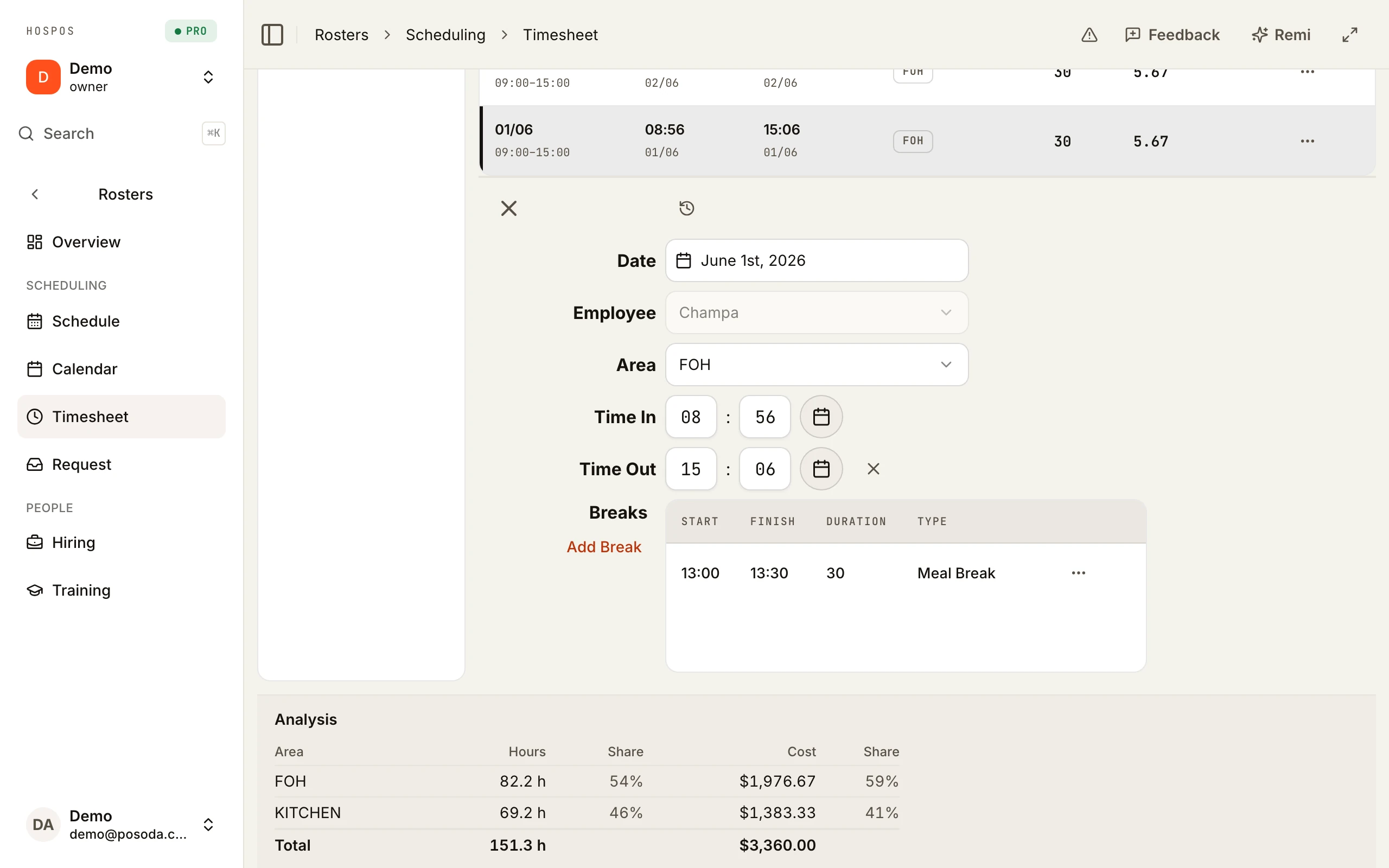
- Someone forgot to clock out. On Roster › Overview choose Fix clock-out beside them, or on Checks choose Correct the clock… on their row. The clock-in is filled in from the clock. The clock-out is filled in from their last completed sale on the till that shift, shown as Last seen on the till 9:47pm (last sale) — filled in above · rostered to 10:00pm, with What happened? set to Forgot to clock out — the till is recorded as the basis by itself, so one click saves it. If the till has nothing from them, or its last sale is long after the rostered finish or only minutes into the shift, the clock-out starts empty: type when they really left. Add a note if it helps (for example Duty manager saw her leave at 10pm). The paid clock-out is filled from it. A clocked shift's Time Out can't be typed on the shift itself: Correct the clock is the only way, so every change is on record. (Who is clocked in right now is on Roster › Overview: Clock out on their row clocks them out now, and a clock-in nobody closed from an earlier day shows there with Fix clock-out, which opens Correct the clock on it.)
- Fixing hours at the staff terminal. A manager (on their staff record, Access › App permissions › Manager) who signs in on the staff terminal sees it on Me, at the top of For you, for example 2 shifts need you with a link to Staff hours. Staff hours lists what needs them first — End unknown, an automatic clock-out to check, paid time past the clock — with Correct the clock… (and Keep the rostered finish for an automatic clock-out), then everyone's hours for the last two weeks: tap a person to see their shifts by week, and tap a shift to correct it. It is the same Correct the clock as here, saved with their name and "(on the portal)". Pay isn't shown there. If the screen reloads, it asks for their PIN again before showing anything.
- A break was never ended. It counts only up to the shift's clock-out. Choose Correct the clock on the shift and type when it ended, with why: it is saved as a clock correction. Until you type the end, the Breaks total counts the break as still running and the pay line says Enter the break end.
- They didn't work a shift they clocked. Open the shift and choose Remove clock times. It takes the clock-in, clock-out and breaks off the timesheet and payroll, and keeps the rostered shift on the roster, shown as not worked. The box says what goes and what stays, for example Removed: Clocked 4:50pm – 10:54pm · 6h 04m · breaks 15m, Pay: Goes down 5h 49m and Kept: Rostered 5:00pm – 10:30pm. Choose What happened? (for example Clocked on the wrong shift or Didn’t work this shift): like any clock correction it's kept with your name in the shift's history, as clock removed. On an approved shift it also takes the approval off. A shift that was never on the roster (someone clocked in unscheduled) has nothing to keep, so it offers Delete instead, after a confirm that names the person, the day and the hours. A rostered shift nobody clocked isn't deleted from the timesheet: change it on the Schedule.
- A break ran on because they forgot to end it. If they went back to work without tapping Back on shift, the break runs until they clock out: a 15-minute break can show as 48 minutes. Open the shift and choose Correct the clock. Under Breaks, a break that was still running at the clock-out says Ended by the clock-out — nobody ended this break. Type when they really came back, or remove a break they never took, or Add break for one they took but never clocked. What happened? is already set to Forgot to end their break; add a note if you like. The box shows what it does to pay, for example Pay goes up 33m with Breaks −33m under it, and the correction is kept with your name in the shift's history like any other.
- A shift with no Time Out isn't counted in the hours, the to pay / held back amounts or the export until it has one.
- Moving a shift to another day. Change its Date: the times and breaks move with it. If the clocks change that night and one of its times doesn't exist there (2:30am when the clocks go forward), the move is refused and nothing changes. If a time happens twice (when the clocks go back), you're asked which one. The same goes for copying or dragging a shift on the schedule.
Staff app clock-ins to check. Once you Set clock-in location, phone clocks made away from the venue, or with location turned off, are listed here, and Mark checked clears each one. A clock made away from the venue keeps its shift on Review, with an OFF-SITE chip, until it is marked checked. The location starts from your shop address, so if the address is on file you only need to press Save. Use my current location works too, while you're in the venue. Until a location is set, phone clocks aren't checked against the venue.
Check the week before payroll
The Checks tab opens on Pre-payroll checks for the same week the timesheet shows (use the arrows to change it). The headline says how many checks pass, and only says ready for payroll when nothing blocks. While something does, it counts blockers and warnings apart, for example 8 of 13 checks passing — 3 blockers · 2 warnings. A blocker is something to fix before you pay; a warning is for your information. Neither stops the PayHero file from downloading (see Export to PayHero), but a shift a blocker names that can't be paid as it stands — one with no clock-out, for example — is left out of the file, and blockers hold the wage journal. The line under it says how many shifts were worked, how many are approved and how many need attention — the same numbers as the timesheet — and, if you can see wages, what is to pay and what is held back. Only the failing checks are listed, each opening with the shifts it found so you can fix them right there; the count updates as you go. The checks that pass fold into one line (9 checks passing) — open it to see them. A shift that can't be approved until another check is fixed (for example it has no clock-out) is listed under that check only; Every shift is approved just says 1 shift waits on a check above.
While anything blocks, a link at the top reads Fix 3 blocking checks, beside Export CSV for PayHero (which still works). Choose Fix 3 blocking checks to open the timesheet showing only the shifts those checks found (one shift opens straight away). The timesheet says Showing 5 shifts from Checks: and which checks, with Back to Checks and Show every shift. Each failing check also has Show these 2 on the timesheet → for its own shifts:
- Every shift has a clock-out — a missing clock-out, one at the same minute as the clock-in, or End unknown: a shift someone forgot to clock out of that their next clock-in (or a clock-out more than 16 hours after the clock-in) closed with no hours. Each offers Correct the clock…. The clock-in is filled in from the clock and the clock-out from their last completed sale on the till that shift (Last seen on the till 9:47pm (last sale)); with nothing believable on the till it starts empty. Only completed sales count, never a declined card, a cancelled order or a voided docket. Check it and choose What happened?. One save corrects the clock and fills the paid clock-out (a clock-out at the same minute as the clock-in, or before it, counts as missing: correcting it shows Pay goes up … and pays the corrected time), and the correction is kept in the shift's history; approve the shift afterwards. On the night the clocks change, the time you type is the time saved: a time the clocks skipped is refused, and a time that happened twice (when the clocks go back) asks which one.
- No finish is paid past the clock-out — a finish typed (or entered) later than the clock-out the clock recorded, even by a minute, for example Finish paid 4h 00m past the clock-out · paid 12h 00m · clocked 8h 00m. It holds that shift only: everyone else's shifts still approve and go to payroll. No approval or reason lets it through. If they left when the clock says, choose Use clocked times & approve. If they really stayed, choose They worked it — correct the clock… and say why: the correction is kept with your name in the shift's history, and the shift then passes. Such a shift is listed here only, never also under Paid hours match the clock.
- Paid hours match the clock — any other paid minute the clock didn't record: paid times outside the clocked times (an early start) (1h 00m outside the clocked times), a clock-out nobody punched (no clock-out was punched — correct the clock), a shift entered by hand with no clock at all (no clock record — correct the clock), a clocked break deleted or shortened by hand (0h 30m of a clocked break is paid — the row shows the clocked break, for example break 4:00pm–4:30pm, and Use clocked times + break & approve puts the times and the break back in one click), or a shift someone else clocked and that was then moved to this person (clocked by Leo Chen, then moved to this person). That last one offers Move back to Leo Chen. If the new person really worked it, use Correct the clock… instead. No approval or reason lets these through. Correct the clock… starts from what the clock recorded, never the paid times, and asks What happened?: pick from the list and add a note if it helps (both are optional). It shows the clocked and paid times side by side. If they really worked it, choose Correct the clock…: the corrected clock must be on the shift's own day (within 12 hours of it), and is kept with who made it and any reason given; a later correction of the same shift replaces the earlier one, which is marked replaced by a later correction. Before you save, the box shows what the correction does to pay, for example Pay goes down 3h 00m · −$60.00, with Clock moves −3h 00m under it. A correction never pays past the paid times the shift already had: if they were paid 9:00–5:00 and the clock said 8:30–5:30, correcting the clock-out to 5:20 leaves pay alone, and the box says Pay doesn’t change and Paid times stay 9:00AM – 5:00PM. To pay the longer time, tick Also pay to the corrected clock (it shows the new paid times and the extra minutes, and is only offered when it would pay more; picking a reason doesn't hide it). A correction that changes nothing can't be saved: with the box on offer, the line reads Pay doesn't change. Tick Also pay to the corrected clock to pay it. If you correct a clock down by mistake, correct it back: the paid times are worked out again every time, so pay goes back up with it, as far as the paid times it had. The pay change is counted from what could be paid before, never from paid times that ran past the clock (those were never payable): if they were paid 9:00am–9:00pm but clocked out at 5:00pm, correcting the clock-out to 9:00pm shows Pay goes up 4h 00m. Choose Use clocked times & approve (or Use clocked times & approve all): the shifts are paid what the clock recorded and approved, with no reason to type. This works on an approved shift too. If the clocked times can't be approved as they are — for example they fall inside another of that person's shifts — the button says only Use clocked times, with why beside it: Won't approve as clocked: Overlaps Sun 10pm–3am shift. Each row's button is judged on that shift alone, as the rest of the person's shifts stand now; Use clocked times & approve all is judged with all of them put back together. So for a split shift paid 8–12 and 12–5, the morning's own button can say Won't approve as clocked: Overlaps Wed 12pm–5pm shift while & approve all puts both back and approves both. On the timesheet, the red $143.67 paid past the clock on 4 shifts opens to list those shifts, with paid against clocked and what each costs; Put the clock times back on Checks → goes to the check that lists them.
If the clocked times themselves still need a reason (a 20-hour double the clock really recorded), the row asks for it first, and Use clocked times & approve pays the clock and approves in one go. The button only says & approve when the approval will go through.
- Every shift is approved (only at a venue that approves shifts) — choose Approve, or Approve N ready for all the clean ones. A flagged shift needs Approve with a reason…; when several only have amber flags, Approve N with this reason approves them together with one reason.
- No leave request waiting — Approve leave or Decline right there. The same requests are on Leave requests (under Leave & availability in the sidebar), each with the hours and working days it takes.
- Every punch off the roster has a reason — a clock-in or clock-out more than its allowance off the roster (10 minutes each unless you change them) that came from a device that couldn't ask why (the till, or an older Posoda Staff app), or was recorded without asking. Clocks from before your venue started asking aren't listed. A clock-out you set with Correct the clock… carries the reason you gave there, so it isn't listed. It's a warning unless you turned on No reason from an older till or app blocks payroll — and even then, one recorded without asking stays a warning. Choose Add clock-in reason… (or clock-out), pick or type what happened, and save; your name and the time are kept with it.
- Everyone paid has a pay rate lists anyone with hours and no hourly rate in Posoda. It doesn't hold their shifts: they can be approved, and their hours are in the CSV file, because PayHero pays from the rates it has. In Posoda they cost $0 until you set a rate, and Post to Xero waits for one.
- Shift times add up blocks too. A shift of 20 hours or more is usually a missed clock-out. If the clock really recorded it (a double shift and the close), choose Approve with a reason… and say so; a 20-hour shift typed in by hand, or anything 24 hours or longer, can't be approved. Until it is approved its hours aren't in the wage cost; once approved it is paid in full — in the Wage cost, on Checks and in the export alike. Open the shift → opens that shift on the timesheet.
Warnings — Worked length matches the roster, Wage cost matches rostered cost, Every worked shift was rostered — only show past a few minutes or dollars, so small drift isn't flagged.
Thresholds, on Rosters ▸ Rules ▸ Time & pay, set how far is too far — including Clock-in off the roster — ask why after and Clock-out off the roster — ask why after (10 min each unless you change them), which is when the staff terminal asks for a reason, and Stop clock-ins more than 10 min before the roster (off unless you turn it on; the label shows the minutes you set), which refuses a clock-in earlier than that. The table has one Save (and Discard) for everything on it: a switch or a number changes nothing until you save, and emptying a box clears it on save. A row your company holds says Set by the company. If you agreed an early start, set the clock-in on the timesheet with Correct the clock… (your name and reason are kept). Your company's values apply at every venue; a venue can only make them stricter.
What holds a shift
These are built in at every venue that approves shifts. A blocking one holds the shift until it's fixed; a review one needs a manager to approve that shift on its own, with a comment. (With approval off nothing is held for approval: the blocking ones show as failing checks, and a shift that can't be paid as it stands is left out of the PayHero file.)
- Blocks: no clock-in or no clock-out; the clock-out is still to come; 20 hours or longer (a missed clock-out, never a shift); a break still open, outside the clocked hours, or as long as the shift; overlapping another shift of the same person; paid past what the clock recorded (put the paid times back, or correct the clock).
- Review: worked more than 30 minutes over the roster; longer than 12 hours; held by the auto-approve window; and, whether or not auto-approve is on, not rostered or the roster moved after the clock-in, times edited by hand, clocked off-site, or a break left running until clock-out.
How often you pay
On Rosters ▸ Payroll ▸ Settings, the Pay period card sets Pay staff to Weekly or Fortnightly. Timesheets, the PayHero export and the wage journal all go by it, and the timesheet opens on the matching period. For Fortnightly, pick A day in the first week of a pay fortnight: the card then shows This pay period and, before you save, what it will become (After saving, this pay period will be …). Choose Save pay period. A change is refused only when approved, locked or journalled pay falls on or after the first day of the new period. The card says so before you save, under the preview (Saving will be refused: the new period would start on …), with the reason.
Pay details (KiwiSaver, ESCT, IRD)
The PayHero file carries hours only: PayHero keeps each person's IRD number, tax code, KiwiSaver and ESCT itself, so the export and the Checks tab never ask about them. Posoda keeps a copy on Payroll › Pay details for your records and the pay-details file. Staff add their own KiwiSaver in the Posoda Staff app (Me › KiwiSaver: are you in KiwiSaver, how much of your pay, and what this job pays them in a year for the ESCT band) or on the details step after signing their contract. A row on Pay details that needs fixing also says Ask them to fill it in: Posoda Staff app, Me ▸ KiwiSaver. Nothing is pre-picked for ESCT: the band comes from what you pay them (plus your KiwiSaver contributions), never their other jobs, and anyone who isn't sure leaves it for you to set.
Open Payroll › Pay details to see everyone. Anyone missing something, or with something payroll can't use, is red: an IRD number that fails IRD's check digit, a tax code that isn't an IRD code, or the same IRD number on two people shows as Not valid or Duplicate, and a 3% rate whose IRD approval has ended shows Approval ended. Choose a row to open their card and fix it in place: IRD number (checked as you type), tax code (picked from the IR330 list, each with what it means), status, employee rate, employer rate (at least 3.5%), opt-out date and ESCT, all with one Save pay details. If the person last changed their IRD number or bank account themselves in Posoda Staff, the card says so in an amber note: check it before the next pay run. Opted out or not eligible means both rates are 0; opted out asks for the date on IRD's confirmation (not a future one). 3% is allowed only with IRD's approval of a reduced rate, so it asks for the day the approval ends (12 months at most). When that day passes the person is flagged, never moved to 3.5% behind your back. ESCT has no default: a blank one is flagged.
The page keeps itself up to date while it's open. If the person saves their KiwiSaver in Posoda Staff while you have their card open, the card shows it, for example Mia Walker saved new details in Posoda Staff at 1:35 PM while you had this open. Employee rate: 4% → 8%. What you were typing is kept, and saving changes only the fields you changed, so a tax-code fix never puts their old KiwiSaver back. If you both changed the same field, the card asks which to keep (Use 33% or Keep 17.5%) before it saves. That choice stays until you make it, even if they save again in the meantime, and the line under Save says what is left to choose. If one of you opted them out and the other changed their rate, you choose the status and rate together (Use Member, 8% or Keep Opted out). If they saved a moment before you did, nothing is saved and the card shows their new values to check. The staff app does the same the other way: a change you made while their screen was open isn't overwritten.
Download pay-details file for PayHero gives a CSV of the same values, to bring into PayHero.
Export to PayHero
Hours go to PayHero as a file: Posoda doesn't send them itself.
- On the timesheet, choose Export CSV.
- Check the Work Name (it must match the Work in PayHero exactly), the date format and the name format. The dialog remembers what you used last time, on this device, for this venue.
- Preview shows the rows first. Choose Export CSV: the file downloads to your computer, and the message says where it goes next.
- In PayHero, go to Manage → Timesheet Imports and upload the file.
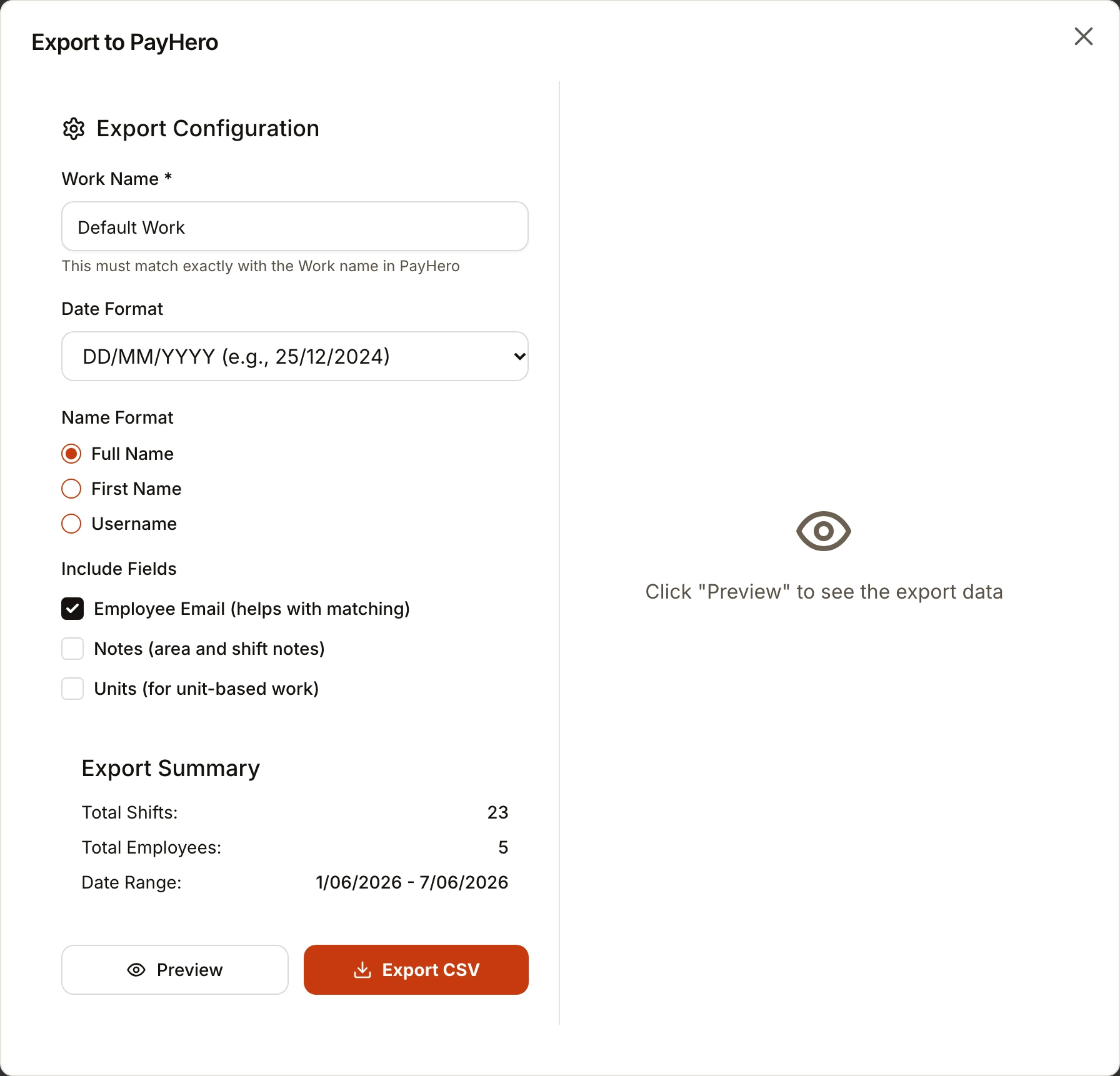
The export is never refused because of a check, and downloading a file closes nothing: you can make it again as often as you need. If a pre-payroll check is failing, the dialog says so in amber — for example 2 checks to look at · you can still export — and lists each failing check with the shifts it found. Choose Fix → beside a check to go straight to it on the Checks tab. A shift that can't be paid as it stands (no clock-out, or paid for more than was clocked) is left out of the file until it's fixed; everything else is in it. On the timesheet the button shows how many checks are failing, for example Export CSV · 2 to check.
Someone with hours in the file and no pay rate in Posoda is named on their own, for example 1 person with hours here has no pay rate in Posoda. This file still carries their hours, but labour cost counts them at $0 until a rate is set. Their hours are in the file: PayHero pays from the rates it has. Choose Set their rates on the Checks tab → to add them.
With approval off, the file carries every clocked shift that can be paid. With approval on, it carries the approved ones.
Public holiday work name. Hours worked on a public holiday are their own rows in the file, so PayHero can pay them at the public-holiday rate. Type the name of the PayHero work that pays them, exactly as PayHero has it. Leave it blank and those rows are filed under the Work Name, like every other row.
What this export pays sums up the file before you download it. With approval off it is one line, In this file: the shifts, hours and wages the file carries. With approval on it shows how many approved shifts, their hours and wages, split into those that approved themselves at clock-out, those a manager approved, and those approved with a reason — then the clean shifts still to approve (Ready to approve — one click on the timesheet) and the ones that need attention (Held back — need attention). These are the timesheet's to pay, ready to approve and held back for the week, shift for shift. A held shift counts at the wage its row shows; someone with no pay rate counts as $0, never at a guessed rate. Salaried staff aren't in the file (their pay isn't hourly), so their shifts are listed on their own line, for example Salaried, not in this file: 5 shifts · 44h · 1 person; the shifts, hours and people in this file are only what the file carries.
Names in the file must match the names in PayHero exactly — use Name Format if PayHero has them differently. Hours can still be edited after you export, so export once the week is final.
- PayHero says a name or work doesn't match — the file's names or Work Name differ from PayHero's. Change Name Format (or the person's name in Posoda) or the Work Name to match PayHero exactly, export again and upload the new file.
Post the wage journal to Xero
The wage journal puts the week's approved wage cost into your books: Dr wage expense, one line per area, Cr wages payable. It's the cost of the hours you approved — tax, KiwiSaver and the bank payment stay with your payroll.
Set it up once on Payroll › Settings › Wage journal · Xero: choose Connect Xero and allow access, then pick the Wage expense and Wages payable accounts from your own Xero chart. Give an area its own wage account if you like (Kitchen wages to a cost-of-sales account, say), and choose a Tracking category to tag each line with its area. If an area isn't an option of that category in Xero yet, the page says so.
Each week, choose Wage journal on the timesheet toolbar. The page shows every line before anything is sent, Balanced · Dr = Cr, and Equals the approved timesheet cost — the same total as the timesheet's to pay and Labour by area in Reports › Shifts, to the cent. Choose Post to Xero; it says Posted to Xero with View in Xero. Choosing it twice never posts twice. Not on Xero, or prefer a file? Download Xero import (CSV) and import it in Xero under Accounting › Manual journals › Import. Until the wage accounts are chosen there's no download: the page says Choose the wage accounts in Payroll › Settings to download the journal, with a link. Salaried staff aren't in the journal; their shifts are named on their own line beside the total. Once a week is posted to Xero, there's no file for it any more: importing one as well would book the wages twice.
A downloaded file counts as being in your books. If shifts are approved after you download it, the page says Changed since the file was downloaded and how much, and Download the change only gives a second file with just the difference. Import both. If nothing changed, Download the file again gives you the same file, so import it once. If you then choose Post to Xero, the page asks whether the file went into Xero: It's in Xero: post the change only, or It never went in: post the whole journal. If you never imported the file, choose Mark it as not in Xero and confirm with Yes — it never went into Xero; the next journal is the whole week again.
Each day of wages goes into your books once. A journal can't cover days that another journal already holds, so once 3–9 Aug is posted, a 3–16 Aug journal is refused. The page names the journal that holds those days and offers a button for the weeks still free (Journal 10–16 Aug).
A posted week keeps the pay rates it was posted at. If you change someone's rate afterwards, that week doesn't move (the page says Costed at the rates it was posted at); the new rate applies from the next week you haven't posted.
There's no journal while the week fails a pre-payroll check — an unapproved shift, a missing clock-out, paid hours past the clock. The page names each shift, with Fix on Checks beside it. Everyone who worked is checked, because their hours are wage cost whoever pays them.
If shifts are approved after you've posted, the page says Changed since posted and how much, and Post adjustment sends only the difference. There's nothing to delete in Xero first.
Once a week is in your books (posted, or its file downloaded), its shifts are locked: you can't unapprove one, change it or correct its clock, because Xero would keep wages the timesheet no longer shows. To fix one, choose Reopen for a correction on the wage journal, or Reopen week & unapprove in the box that opens when you try to unapprove, and say what needs correcting. The journal then reads In Xero · out of date and shows what Xero holds. Fix the shift, approve it again, and choose Post adjustment: only the difference goes in, and the week locks again. If nothing changed after all, choose Lock it again.
If something doesn't look right
- No Export CSV button, or no Total Cost? Those need the financial reports permission (and approving timesheets) — ask an owner.
- "N to check" on Export CSV, or "N checks to look at · you can still export" — a pre-payroll check is failing. The file still downloads; a shift that can't be paid as it stands is left out of it. On the Checks tab, choose the check to see just those shifts on the timesheet, or fix them from the list, then export again. The checks are reported for the whole pay week, even when you export part of it. If Export CSV is greyed out, there are no worked shifts the file can carry in the range you picked (at a venue that approves shifts: none approved yet).
- "Finish paid 2h 30m past the clock-out · paid 7h 30m · clocked 5h 00m" — someone typed a finish later than the real clock-out. Choose Use clocked times & approve. If the longer time is right (they forgot to clock out), choose Correct the clock… and say why: a reason never lets paid time run past the clock, and every correction is listed on the export.
- "Already Clocked In!" on the till — that person is still clocked in, or is on a shift whose clock-out was set for later. Fix that shift's clock-out on the timesheet.
- "This shift's clock changed since you opened it" when correcting the clock — someone else corrected it, or the person clocked, after you opened it. Nothing was saved. The box closes; open Correct the clock… again to see the clock as it is now.
- "The clock-out … happened twice in this venue" or "… never happened in this venue" — on the night the clocks change, a time the clocks skipped is refused, and a time that happened twice asks which one. Times are always read in the venue's own time zone.
- A shift you approved shows as pending again — it was changed after you approved it (its times, breaks, person, area or notes, or a clock correction), so the approval came off. Its History shows the change and Unapproved. Check it and approve it again.
- "Someone else is changing this venue's timesheets or payroll right now" — several people approved, unapproved or sent the same venue's pay at the same moment, and yours waited its turn for 10 seconds. Nothing was changed from your attempt: try again.
- "Xero is locked up to …" on Post to Xero — the week falls inside Xero's lock date. Ask your accountant to move it, or download the CSV.
- "Not an active account in …" or "Not a tracking option in …" — the account was archived or the area isn't in Xero's tracking category. Pick the accounts again on Payroll › Settings, or add the option in Xero.
- "These wages are already in your books" when unapproving — that week's journal is in Xero. Choose Reopen week & unapprove, then post the adjustment once it's fixed.
- "The timesheet changed while this was being prepared" on Post to Xero or Download CSV — someone approved or unapproved a shift in that week at the same moment. Nothing was sent. Reload, check the week, and try again.
- "No journal for … some of these days are already in another journal" — the range you opened overlaps a week that's already posted or downloaded. Open that journal, or choose the button for the weeks still free.
- "Xero didn't answer" after Post to Xero — the journal may have arrived. Choose Check Xero and post: Posoda looks for it in Xero first, so it never lands twice.
- "Xero gave access to 2 organisations" on Payroll › Settings — you ticked more than one on Xero's screen. Pick the one this venue's wages go into.
- "Nothing was connected: that Xero sign-in was started by someone else" — connect Xero from your own login: choose Connect Xero on Payroll › Settings.
Last checked against the app on 2026-11-24.